API Keys and Routing
Applicable role: Admin user Last updated: 2026-08-06
An API Key is the credential for calling models. This page covers Key creation, group binding, plain model name routing, and group identifier routing.
Members can also create their own Keys with the same process, but the available groups are limited to those you have authorized. For the member perspective, see Member Guide - API Key Management.
1. You Must Select a "Group" When Creating a Key
A group can be understood as a different "service plan": the same model may be available through multiple groups, each potentially backed by different routes and pricing. Groups are maintained by the platform. Groups come in two types: standard (balance-based; calls deduct from the organization's credit balance (total quota pool)) and subscription (subscription-based; calls deduct from subscription quota). The billing logic follows whichever type of group is selected. For details on the subscription model, see Subscriptions.
When creating a Key, you must select a routing group (the page pre-selects the first available group; submission is blocked without a selection). Once bound, requests using plain model names are routed to this group first.
So which group does a "model name call" actually use? The platform decides in this order:
- The Key must first be bound to a group. When a Key has no bound group, plain model name calls are rejected directly and do not fall through to default routing.
- If the target model is within the Key's bound group, it goes directly through that group.
- If the target model is not in the bound group, the platform looks up fallback groups through "current user's default config -> admin user's default config" that can serve the model; if no viable candidate is found, the call is rejected.
The platform does not randomly pick a group. When a bound group is revoked, disabled, or has an expired subscription, an error is returned directly -- fallback does not mask permission changes.
Once a Key is bound to a group, you can make requests directly using the model call name.
2. Creating / Editing a Key
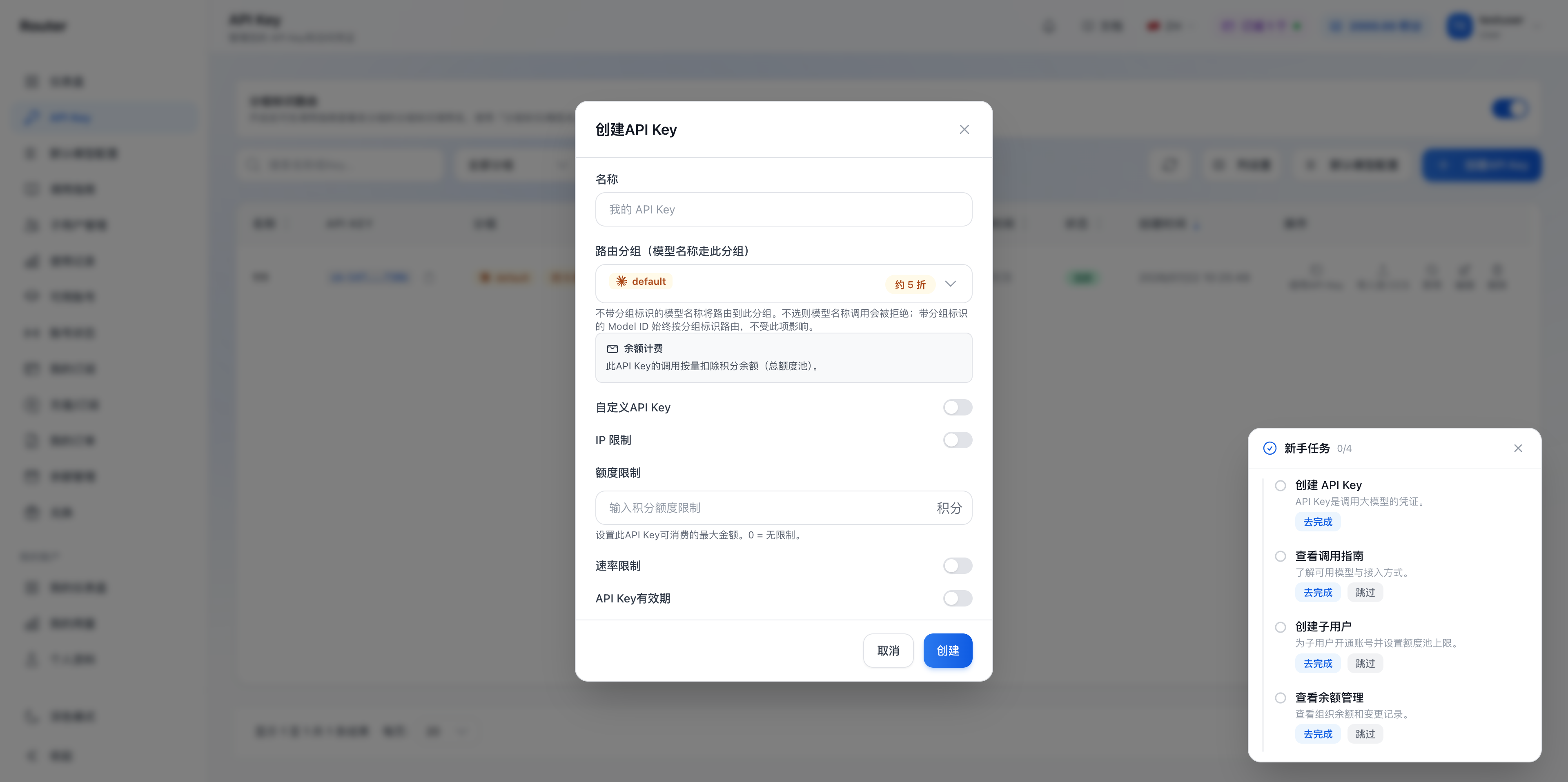
- Go to the "API Key" page (
/keys) and click "Create API Key" in the upper right. - Fill in the dialog:
| Setting | Description |
|---|---|
| Name | Give the Key a name (placeholder "My API Key") |
| Routing Group (model names use this group) | Required. Pick a group; future calls using model names will go through it. Page hint: model names without a group identifier will use this group; not selecting one means model name calls will be rejected. Calls using the group identifier notation always follow the group identifier and are not affected by this setting. The dropdown shows each group's discount label and billing type (subscription quota / balance), so you can see costs before choosing |
| Custom API Key | Toggle (only available when creating). When enabled, you can specify the Key content yourself -- only letters, digits, underscores, and hyphens are allowed, minimum 16 characters; when disabled, the system generates a random Key |
| IP Restriction | Toggle. Restrict this Key to specified source networks (whitelist / blacklist, one IP or CIDR per line) |
| Quota Limit | Set an independent spending cap for this Key (in credits); 0 = no independent limit (still subject to member / organization quota constraints) |
| Rate Limit | Toggle. Limit how many credits this Key can spend within 5-hour / 1-day / 7-day windows. The input labels read "Key limit (5 hours) (credits)", "Key limit (daily) (credits)", "Key limit (7 days) (credits)", with the hint "Set the maximum spending for this API Key within specified time windows. 0 = unlimited." |
| API Key Expiration | Toggle. Set an expiration time (7 / 30 / 90 days or custom); the Key is automatically invalidated upon expiration |
Configuration dialog after clicking "Create API Key":
- After submission, the system displays the full Key. Copy and save it immediately. The full Key is only visible this once; afterward, the list only shows a masked version (e.g.,
sk-062...8c96). If you miss it, you must delete and recreate.
When editing an existing Key, you can change the name, switch groups, change status, and toggle IP / quota / rate / expiration restrictions. There is no "unbind" option in the dropdown -- once a Key is bound to a group, it cannot be unbound.
When organization balance is insufficient, pay-as-you-go Keys cannot make calls even if created successfully. Top up first, or select a currently valid subscription group.
3. Reading and Managing the Key List
The "API Key" page lists all Keys under your account:
| Column | Description |
|---|---|
| Name | The name you assigned. Keys that are certain to fail show a no-entry mark and strikethrough; see "Which Keys Are Currently Usable" below |
| API Key | Masked API Key (e.g., sk-062...8c96), copyable |
| Group | The group this Key is bound to; unbound Keys show an orange "No group bound, please edit to bind". Groups with discounts also display a discount label |
| Billing Source | Whether this Key uses "subscription quota" or "balance", shown as a separate column |
| Current Concurrency | Number of requests being processed simultaneously at this moment |
| Usage | How many credits this Key has consumed |
| Expiration | Permanent or a specific expiration date |
| Status | Active / Disabled / Quota Exhausted / Expired |
| Created At | When this Key was created |
| Actions | Use API Key, Import to CCS, Enable / Disable, Edit, Delete |
("Rate Limit", "Last Used", "Last Used IP", and other columns are collapsed by default; click "Column Settings" in the toolbar to show them. "Import to CCS" can be hidden by a platform toggle and is not visible when not enabled.)
API Key management page:
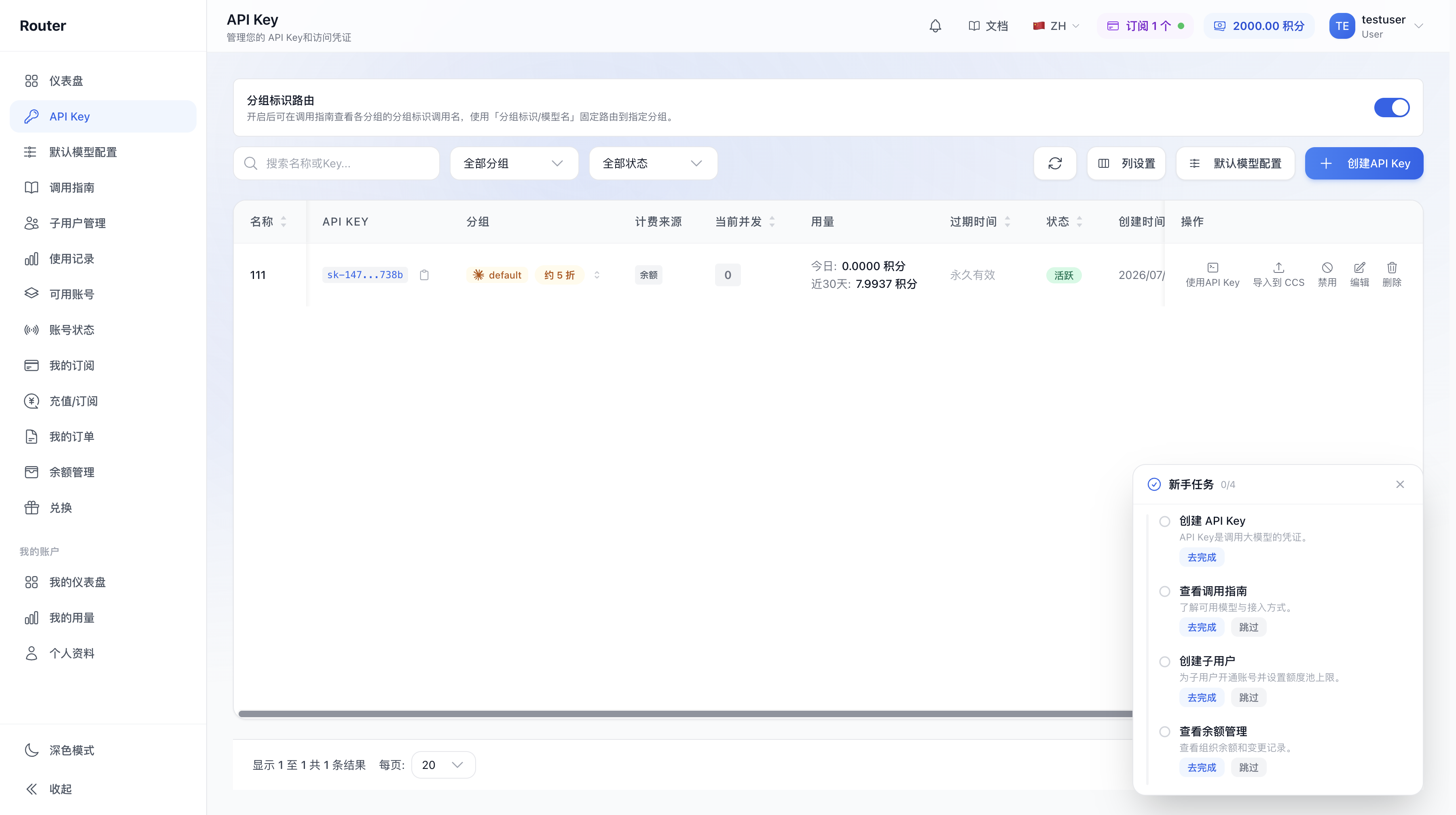
Actions available for each Key:
- Use API Key: Opens a connection configuration panel showing the address and Key to fill in for different tools (e.g., Claude Code, Codex, etc.), with separate instructions for Mac/Linux, Windows CMD, PowerShell, etc. Follow the on-screen content. (Keys without a bound group will not show configuration here and will prompt you to bind a group first.)
- Import to CCS: One-click import of this Key into CCS. This entry is controlled by a platform toggle and is not displayed when not enabled.
- Enable / Disable: Disabling takes effect immediately; re-enabling restores access.
- Edit: Change name, switch group, change status, and toggle various restrictions.
- Delete: Permanent deletion; cannot be undone.
You can also inline-switch a Key's group directly in the list, but there is no "unbind" option -- whether inline or in the "Edit" dialog, once a Key is bound, it can only be switched to another group, not unbound. The group-switching dropdown also displays discount labels.
Which Keys Are Currently Usable
Callability is determined per Key based on its bound group, not as a whole-account cutoff. When organization balance is insufficient, Keys bound to subscription groups continue to work; only Keys bound to pay-as-you-go groups fail. The API Key page marks this in three places:
- Top summary bar (only appears when balance is insufficient): "N API Keys can call normally (subscription quota) - M calls will fail", with the note "Subscription API Keys are not affected by balance and can continue to be used." When all fail, it changes to "All M API Keys are currently unable to call", with a "Go to Top Up" button.
- "Billing Source" column: Shows whether the Key uses subscription quota or organization balance.
- Inline markers: Currently unusable pay-as-you-go Keys show a no-entry mark, strikethrough, and dimmed styling, with the note "Insufficient balance, calls will fail"; subscription Keys show a checkmark with "Can call normally".
When a user gets a 403 in their IDE and comes to investigate, this page is the only place that gives an accurate answer -- the dashboard summary numbers do not distinguish individual Keys.
4. Default Model Config: Setting Default Groups for Model Names
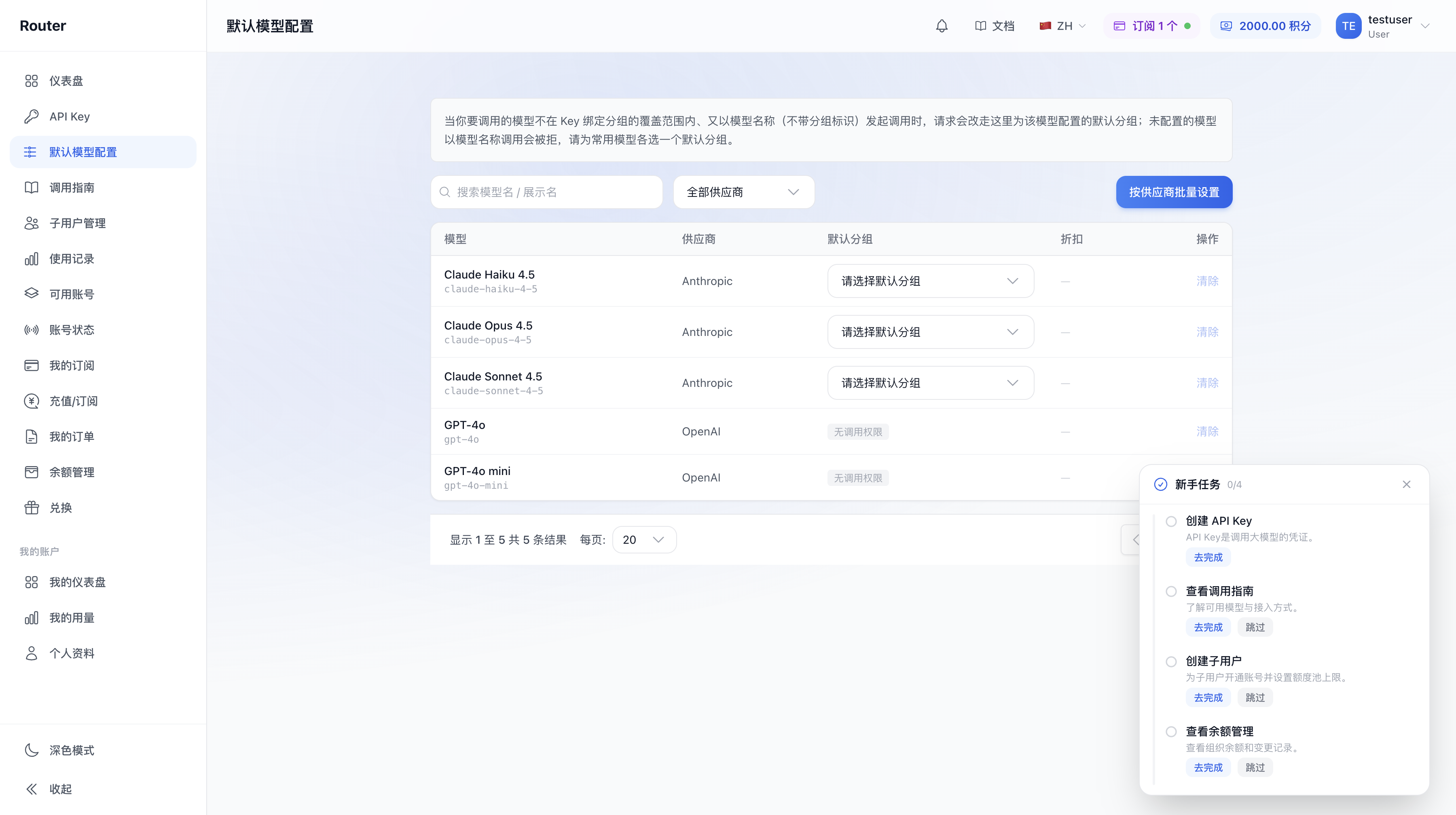
The "Default Model Config" page (/default-model-config) serves this purpose: when a Key that is already bound to a group calls a model that is not in that bound group, this page specifies a fallback group for that model. It cannot enable plain model name calls for Keys that have no bound group.
- This page is always available and accessible anytime; it is not affected by any toggle.
- The page is a table: Model / Provider / Default Group / Discount / Actions. You can search by model name.
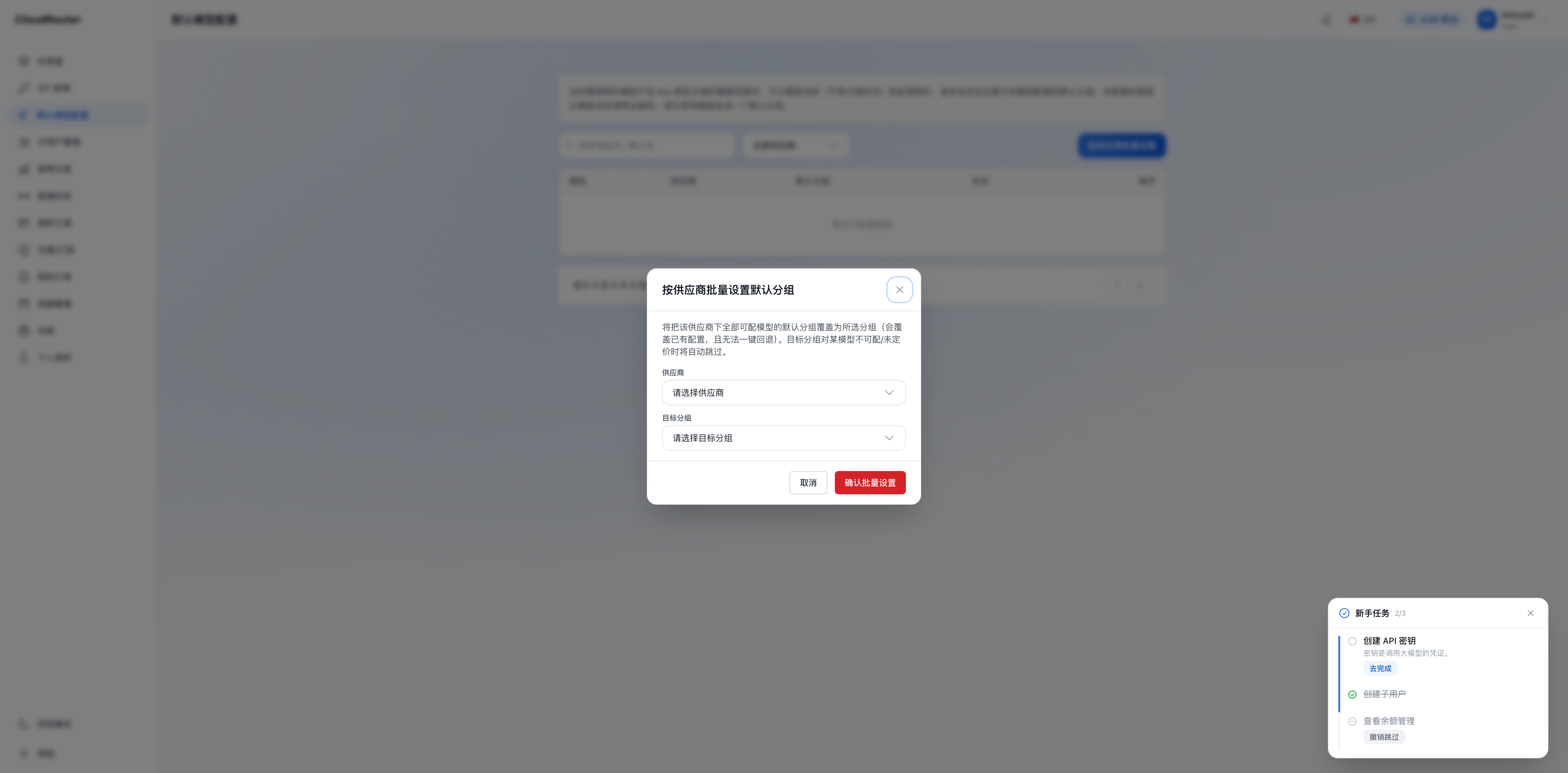
- Supports "Batch Set by Provider" to set default groups for all models under a provider at once. Batch setting requires confirmation and is irreversible once overwritten -- use with caution.
Default Model Config page:
Batch set default groups by provider:
5. Advanced: Group Identifier Routing (Most Users Don't Need This)
The platform assigns a short "group identifier" (e.g., A2C4E6G8) to each group. Prepending the group identifier to the model name lets you temporarily direct the call through that specific group without changing the default configuration. The full notation looks like this:
A2C4E6G8/kimi-k3Prerequisites and key points for this advanced feature:
- The "Group Identifier Routing" toggle must be enabled. This toggle can only be controlled by you (the admin user), with entry points at the top of the "API Key" page and in the "Member Management - Settings" tab. Members follow your setting. If the site has not enabled this feature, neither entry point is displayed.
- When the toggle is off: The "Call Guide" menu remains visible, but group identifier call names on the page become unavailable, and calls with group identifiers are rejected. This does not affect normal calls using plain model names.
- When the toggle is on: You can go to the "Call Guide" page to copy the "group identifier / model name" full notation (see Member Guide - Call Guide for details).
6. Which Group Does a Call Use (Summary)
What you put in model |
Which group is used |
|---|---|
Plain model name (e.g., deepseek-v4-flash) |
Rejected if the Key has no bound group; when bound, the bound group is used first; only if the target model is not in the bound group does it check the current user's / admin user's default model config |
With group identifier (e.g., A2C4E6G8/deepseek-v4-flash) |
When the toggle is on, goes to the group matching the group identifier; rejected if the toggle is off |
When the selected group is unavailable, the platform returns an error and does not automatically switch or downgrade.
7. FAQ
Q: Do I have to select a group when creating a Key? A: Yes. A group must be selected at creation; submission is blocked without one. This is how model name calls know which group to use.
Q: Do old Keys still work? A: Yes. Old Keys continue to work with their originally bound group. Existing scripts do not need changes.
Q: Can one Key use multiple groups? A: Plain model name calls only go through the bound group. For flexible group switching, enable "Group Identifier Routing" and use the group identifier notation. For subscription Keys, you also need to enable "Subscription Cross-Group Calling" -- see Subscriptions for details.
Q: Can members create their own Keys? A: Yes. They can self-create on the "API Key" page, with groups limited to the range you have authorized.
Q: What should I put in model when making a call?
A: Use the model name (e.g., deepseek-v4-flash). You can copy the exact model name from the "Model Plaza" or "Default Model Config" page. "Model Plaza" is not in the left menu -- it is in the top navigation bar, controlled by a platform toggle, and may be hidden on small screens.
Q: What if a Key is lost or suspected to be leaked? A: Find it on the "API Key" page, disable or delete it first, then create a new one. Disabling / deleting takes effect immediately and cannot be undone.