Balance and Quota Management
Applicable role: Admin user Last updated: 2026-08-06
Pay-as-you-go calls within the organization share a single credit balance (total quota pool). The quota pool limit that the admin user sets for a member only caps their spending -- it does not transfer balance into the member's account.
For top-up methods, see Top-up and Redemption Codes. For spending details, see Billing and Usage.
Relationship Between Balance and Quota
| Item | Meaning |
|---|---|
| Organization balance | Remaining credits available for pay-as-you-go calls |
| Member quota | Maximum credits a member can spend within their limit |
| Actual charge | Deducted from the organization balance after a request completes; simultaneously counted toward the member's used quota |
Setting or increasing a member's quota does not immediately reduce the organization balance. Charges are incurred only when the member actually makes a call. Therefore, the sum of all members' quota pool limits can exceed the current organization balance; when the organization balance is insufficient, pay-as-you-go calls are still affected.
Subscription Keys use independent subscription quotas. For specific rules, see Subscriptions.
Viewing Organization Balance
Open the left menu "Balance Management". The statistics cards on the page show the quota pool, cumulative purchased credits, and cumulative gifted credits. The balance history below is used to query top-up and spending transactions.
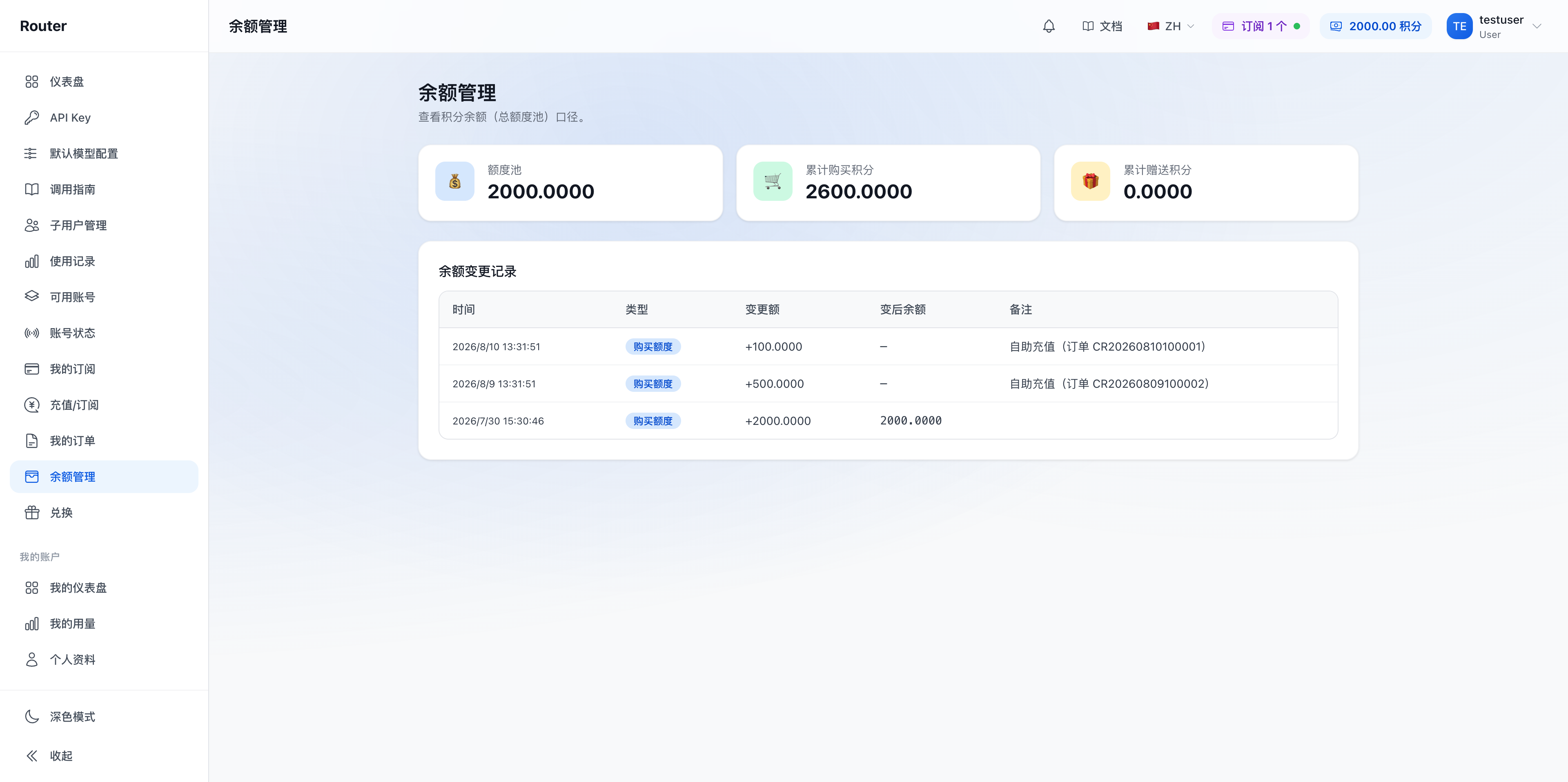
The Balance Management page is a query page. Top-up is done on the "Redeem" or "Top-up / Subscribe" page; member quotas are set in "Member Management".
Setting Member Quotas
- Open "Member Management".
- Find the target member and click "Edit".
- Enter the quota pool limit.
- Save the settings.
When adjusting multiple members at once, use the batch setting function in the list toolbar. Quota changes take effect immediately for subsequent requests and do not modify existing usage records.
Multiple Keys share the member's quota. Creating multiple Keys for different applications helps track usage sources but does not increase the total spending cap.
Behavior When Quota Runs Out
| Situation | Scope of Impact | Resolution |
|---|---|---|
| Member quota exhausted | That member's pay-as-you-go Keys | Admin user increases the quota, or switch to a valid subscription Key |
| Organization balance insufficient | Pay-as-you-go calls across the organization | Top up the organization |
| Individual Key quota exhausted | That API Key | Adjust the Key's limit, or use a different Key |
| Subscription quota exhausted or expired | Keys bound to that subscription | Wait for subscription quota reset, renew, or adjust the subscription |
The API response content may vary depending on the trigger condition. When troubleshooting, check the status, billing source on the API Key page, and the code in the API response.
Adjusting or Revoking Quotas
To limit a member's future spending, lower their quota pool limit or disable their account. Lowering a quota does not generate a balance transfer record. Before deleting a member, confirm that their API Keys and applications have been disabled.
Historical usage records remain in the organization statistics and are not deleted due to quota adjustments.
FAQ
Does setting a quota pre-deduct from the organization balance? No. Balance is deducted only after a call actually occurs.
Do members have independent balances? No. Members can only view their own quota and usage. Pay-as-you-go charges are deducted from the organization balance.
Does creating multiple Keys give a member multiple quotas? No. All Keys under one member share the same user quota, though each Key can have its own independent limit.
Are the admin user's own calls subject to member quota limits? No. Member quotas only apply to the corresponding member. The admin user's calls are subject to the organization balance and Key limits.