Subscription Management and Member Assignment
Applicable role: Admin user Last updated: 2026-08-06
Subscriptions use independent periodic quotas and can coexist with pay-as-you-go billing. The type of group an API Key is bound to determines whether a request uses the organization balance or subscription quota.
For pay-as-you-go billing, see Balance and Quota. For Key and routing rules, see API Keys and Routing.
Pay-as-you-go vs. Subscription
| Item | Pay-as-you-go | Subscription |
|---|---|---|
| Billing source | Organization balance | Subscription quota |
| Quota mechanism | Continuously deducts from balance | Calculated per day, week, month, or other window |
| Member scope | Organization and member permissions | Members assigned to that subscription |
| Expiration impact | Balance itself does not expire by subscription | After subscription expires, related Keys can no longer be used |
| Key binding | Standard group | Subscription group |
The two methods are independent of each other. When organization balance is insufficient, valid subscription Keys can still make calls. When subscription quota is exhausted, pay-as-you-go Keys with sufficient quota are not affected.
Viewing Subscriptions
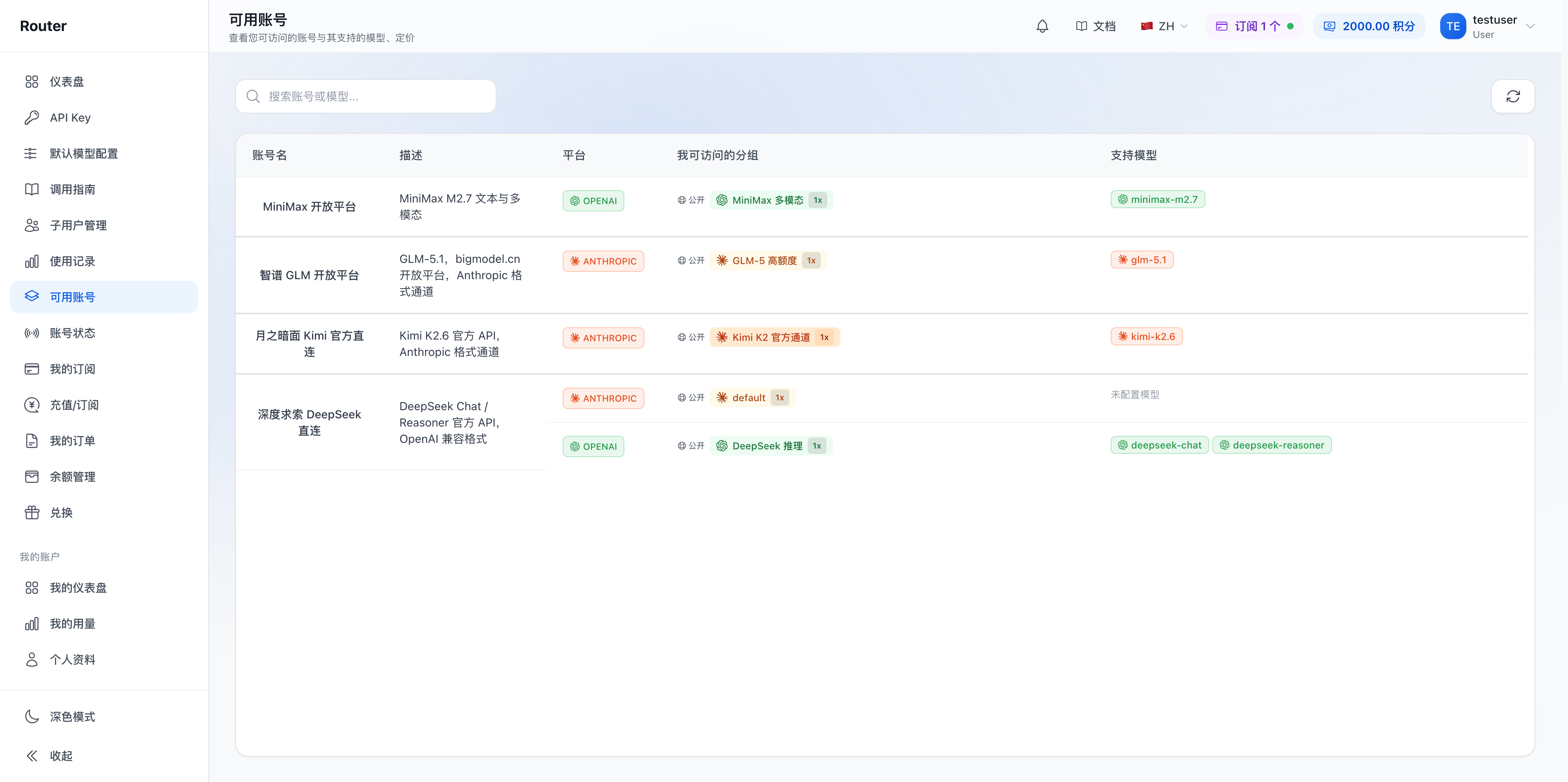
"My Subscriptions" displays the groups, status, validity period, and subscription quota for current subscriptions.
Admin users can also view inventory in the "Subscription Inventory" tab under "Member Management". The list columns are: Plan / Total Seats / Used / Available / Expired / Next Expiry / Actions. If the account does not have the corresponding entry, contact the platform to confirm whether the organization has subscriptions enabled.
Assigning Subscription Members
- Open the "Subscription Inventory" tab under "Member Management".
- Find a plan with available subscription seats.
- Click "Manage" on that row to enter the seat details page.
- On the details page, click "Add Members"; the dialog title is "Add Members - {Plan}".
- Search for and select members, then click "Confirm Adding N People" to submit.
- Ask members to verify their status on "My Subscriptions" and the API Key page.
Within the same subscription group, a member cannot occupy multiple subscription seats. Removing a member from a subscription does not clear their existing usage.
For larger teams, use "Batch Assign to Individuals", which is located in the upper right of the subscription inventory page header (only appears when subscriptions exist). Before submitting, verify the number of available subscription seats, target members, and expected seat consumption to avoid partial assignment failures due to insufficient inventory.
Handling Member Changes
When a member leaves a project or the organization:
- Disable or delete their related API Keys.
- Remove the member from the subscription.
- Check whether the freed subscription seat needs to be assigned to another member.
- Retain necessary usage records and operation logs.
When the organization has directory sync enabled, you can use the options provided on the page to sync new and departing members. Before enabling auto-disable for the first time, it is recommended to verify recognition results in record-only mode.
Subscription Quota (Daily / Weekly / Monthly)
A subscription may have daily, weekly, and monthly quotas set simultaneously. When any window is exhausted, related requests are paused until the window resets. When the subscription expires, renewal or reassignment is needed.
When troubleshooting, check all of the following:
- Whether the subscription is within its validity period;
- Whether the current member is still in the subscription;
- Which subscription quota has been exhausted;
- Whether the Key is bound to the correct subscription group;
- Whether the target model and account are available.
Routing for Subscription Keys
By default, subscription Keys only call models within the bound subscription group, and costs are counted against that subscription quota.
Only after the organization enables the subscription cross-group capability can subscription Keys access other permitted groups via default model config or group identifiers. Cross-group requests still use the original subscription quota and are recorded according to the pricing rules of the actually matched group.
When cross-group calls fail, contact the platform to confirm whether the organization capability is enabled, then check the admin user's group identifier routing settings and target group permissions.
FAQ
How do I purchase or obtain a subscription? When the account has a "Top-up / Subscribe" entry, you can purchase online. You can also contact the platform to learn about available plans.
What happens to members after a subscription expires? Keys bound to that subscription can no longer be used. After renewal, service can be restored based on page status, or the Key can be rebound to another available group.
Can a member join multiple subscriptions? Yes, they can join different subscription groups. Seat occupancy rules within the same group are determined by the subscription details.
Does subscription quota deduct from the organization balance? No. Subscription Keys use subscription quota; pay-as-you-go Keys use the organization balance.
What is the difference between batch assignment and per-seat management? "Batch Assign to Individuals" is suitable for arranging subscription seats for multiple people at once. Per-seat management is suitable for adjusting members of a specific subscription. Both methods should be verified for inventory before submission.
For how members view subscriptions, see My Subscriptions.