Top-up and Redemption Codes
Applicable role: Admin user Last updated: 2026-08-06
Credits obtained through top-up go into the organization balance and are shared by pay-as-you-go calls from both admin and member users. Admin users can top up via redemption codes or the online payment options provided in the console.
Member spending is controlled by quotas. For setup details, see Balance and Quota.
Using a Redemption Code
- Open the left menu "Redeem".
- Paste the complete redemption code into the input field.
- Check for correct capitalization and leading/trailing spaces.
- Click "Redeem".
- Confirm the balance or entitlement change shown on the page.
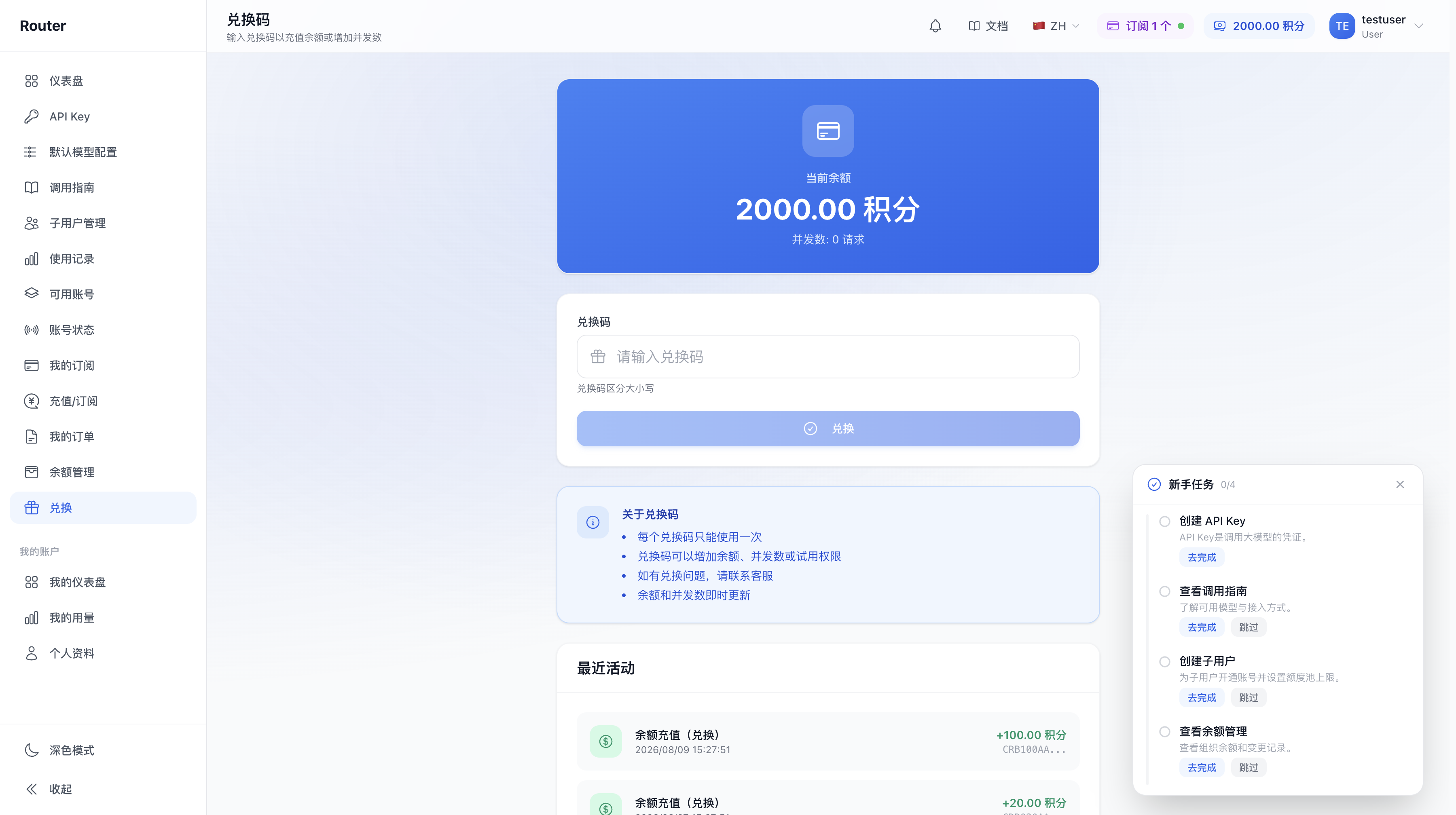
Each redemption code can only be used successfully once. Redeemed content may include balance, concurrency, or subscription entitlements. The actual result is shown in the success message details. On failure, the page explains whether the code is invalid, already used, or expired.
Recent redemption activity can be viewed in the "Recent Activity" section on the page. Balance changes also appear in the change records under "Balance Management".
Online Top-up
Once online payment is enabled for the account, the left menu shows "Top-up / Subscribe". The typical steps are:
- Go to "Top-up / Subscribe".
- Select a top-up amount or plan.
- Choose a payment method provided on the page.
- Complete the payment.
- Return to the console to confirm balance and order status.
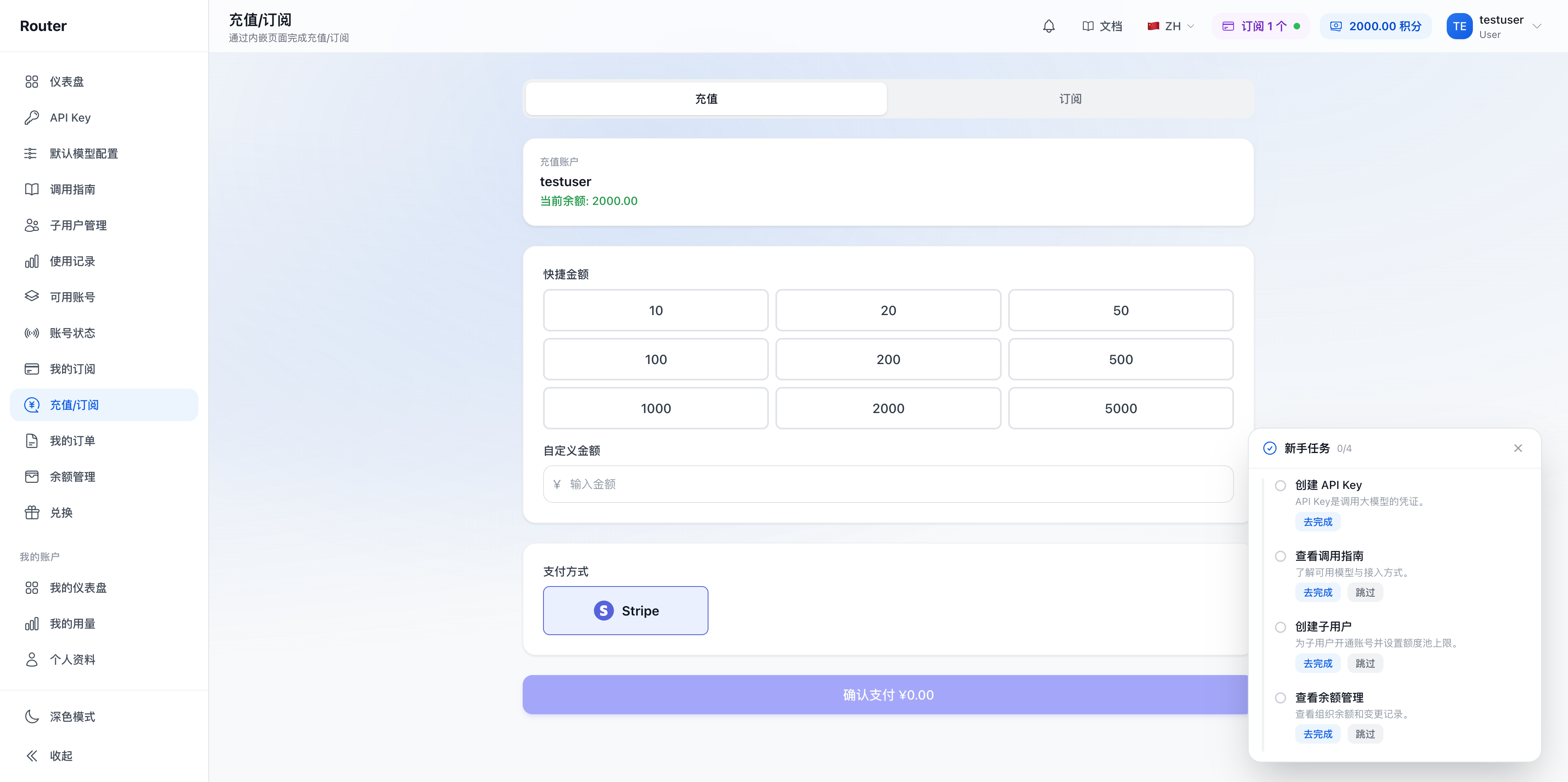
Payment methods, amount ranges, and processing times are as shown on the page. If your account does not have an online top-up entry, use a redemption code or contact the platform for other options.
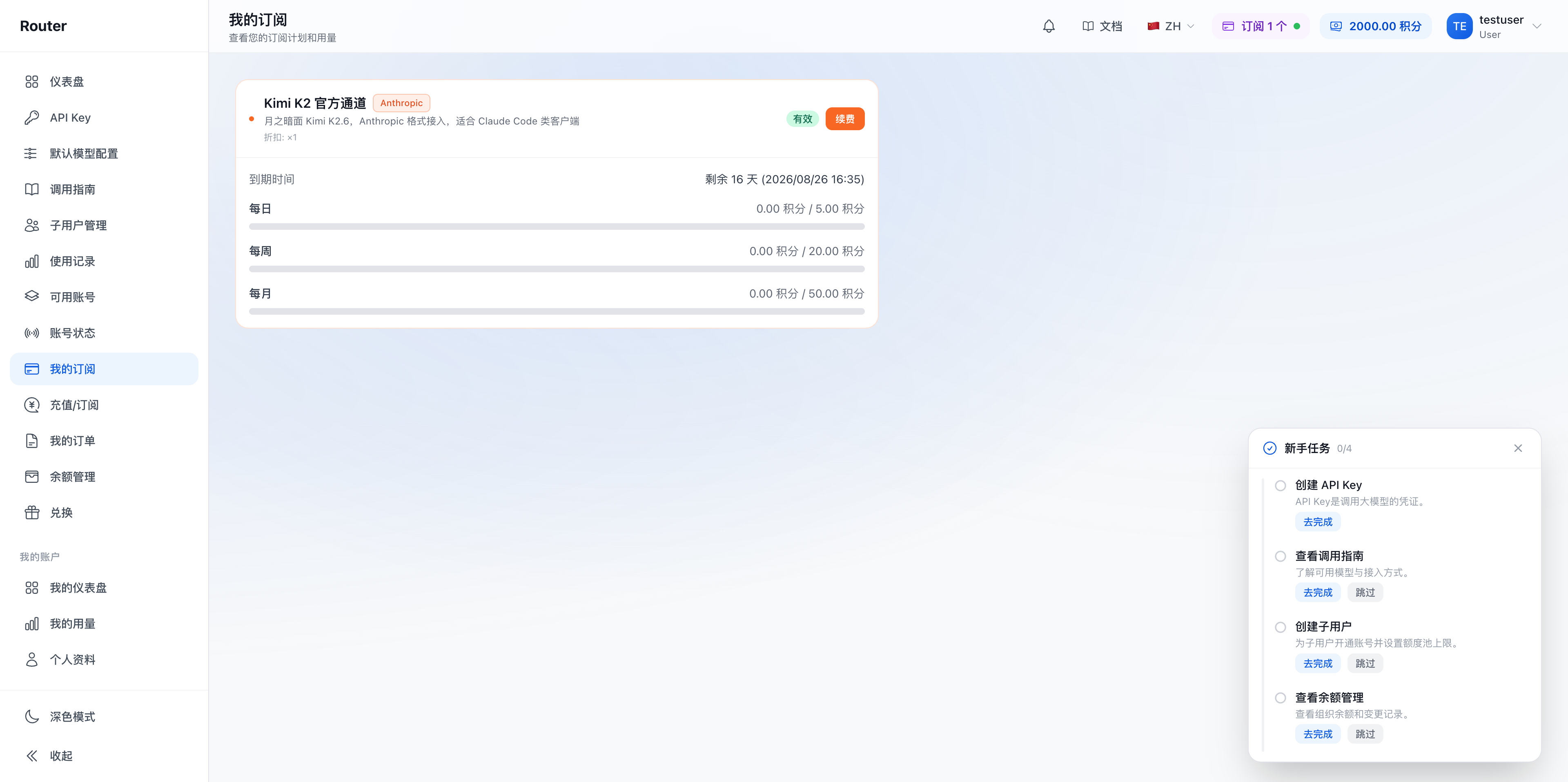
Current subscription entitlements can be viewed in "My Subscriptions":
Checking Records and Receipts
- Balance top-up and spending history: Open "Balance Management".
- Online payment orders: Open "My Orders".
- Subscription quota and validity: Open "My Subscriptions".
- Invoices or payment receipts: See Invoices.
Some entries only appear when the account has corresponding orders or payment methods.
FAQ
What if the redemption code shows as invalid or already used? Re-copy the redemption code and confirm there are no spaces or capitalization errors. If it still fails, contact the code provider to verify its status.
How do members use the balance after top-up? No transfer is needed. Set a quota pool limit for the member, and their pay-as-you-go calls will be deducted from the organization balance.
Can a redemption or online top-up be reversed? The console does not provide self-service reversal. For refunds, contact the platform and provide the order number, payment time, and amount.
Can members top up? No. Top-up and organization balance management are handled by the admin user.