Invoices and Receipts
Applicable role: Admin user Last updated: 2026-08-06
Invoices are requested based on actual paid orders. The entry is on the "My Orders" page. The invoicing feature is controlled by a platform toggle. When the platform has not enabled "Invoicing", the "Request Invoice" button does not appear on order rows. In that case, contact platform support to inquire about invoiceable orders.
Before Requesting
Please prepare the following information:
- Order number and payment time for completed orders;
- Payment receipt;
- Invoice type and amount;
- Company name and unified social credit code;
- For special VAT invoices: address, phone number, bank name, and account number;
- Invoice recipient contact name, phone number, and email.
Canceled, payment-failed, or fully refunded orders cannot be invoiced. Partially refunded orders are processed based on the non-refunded amount.
How to Request an Invoice
- Open "My Orders".
- Find an order row with Completed status and verify the amount and payment time.
- Click the "Request Invoice" button on that row.
- The page redirects to an external invoicing form. Fill in and submit as required by the form.
"Request Invoice" only appears on completed order rows and requires the platform to have enabled "Invoicing". If your account does not show an orders entry, provide the payment time, amount, and paying entity to platform support, who can help locate the order.
Checking Invoice Status
Completed order rows display a "Invoiced" or "Not Invoiced" badge. The order list also has a "All Invoice Statuses" filter at the top for filtering orders by invoice status.
Downloading Payment Receipts
- Single order: Click "Download Receipt" on that row.
- Multiple orders: Select them and use "Batch Download Payment Receipts" in the batch action bar.
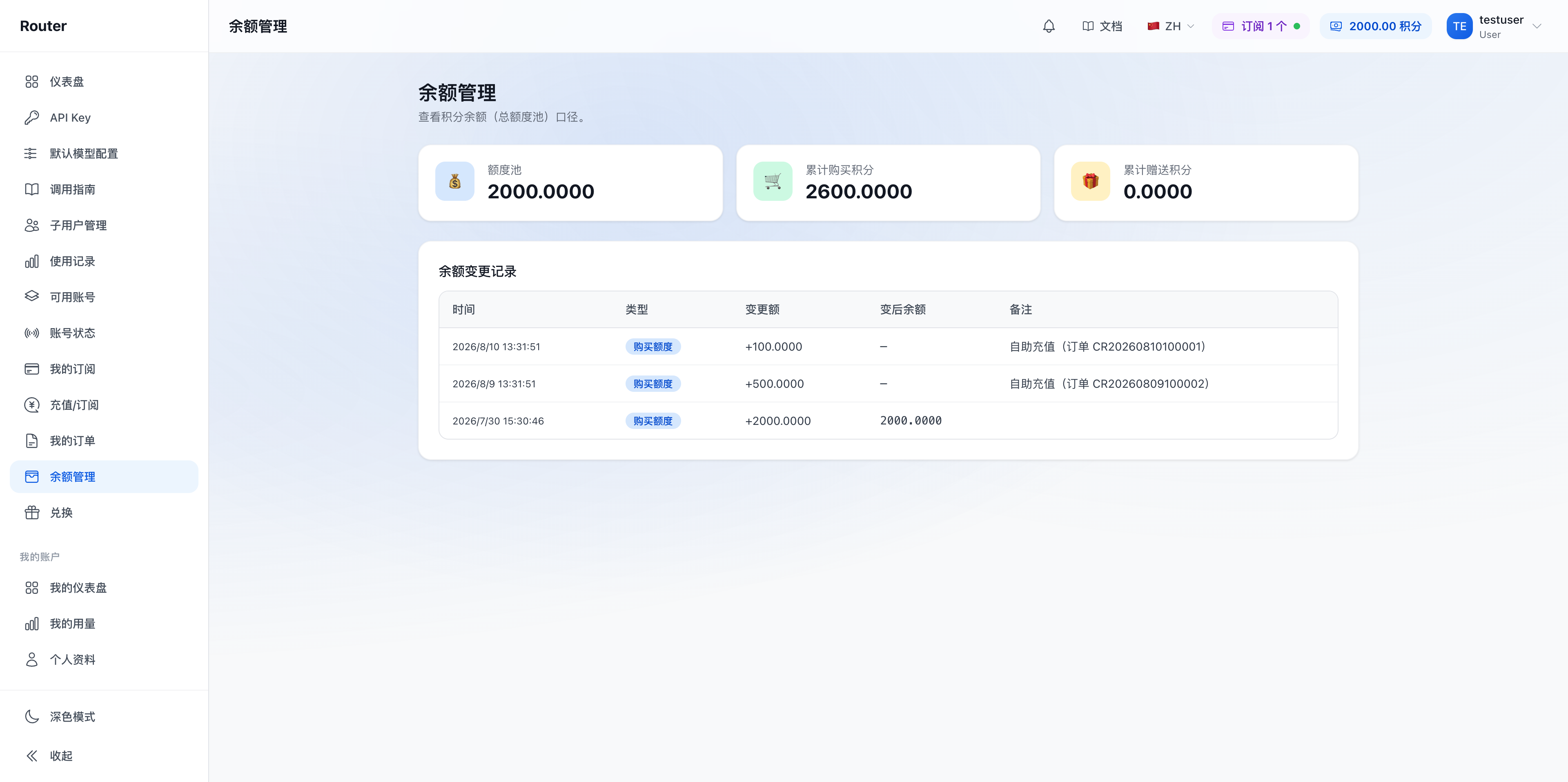
The Balance Management page can be used to verify balance changes:
Submitting Invoice Information
Submit the information on the redirected invoicing form. If there is no invoicing entry, you can also submit through customer service channels. The invoice header should match the entity certification documents, and the invoice amount should match the order and payment receipt.
Before submitting, double-check:
- Company name and tax ID are complete.
- Regular or special VAT invoice type is correct.
- Whether multiple orders need to be consolidated into one invoice.
- The recipient email can receive attachments normally.
- Whether the order has already been invoiced.
If information is incorrect, contact the platform to correct it as soon as possible. After an invoice has been issued, it may need to be voided and reissued following the standard process.
Receiving and Verifying Invoices
Electronic invoices are typically sent to the email provided during the request. After receiving, verify the header, tax ID, amount, order scope, and invoice type. If the invoice has not been received after the processing time communicated by the platform, provide the order number, request time, and recipient email for inquiry.
FAQ
Can multiple orders be consolidated into one invoice? Whether this is supported depends on the order entity, payment method, and invoicing rules. List all orders to be consolidated when submitting the request.
I only have the order number but no payment receipt. What do I do? Contact the platform first to verify the order. If a receipt is still needed, follow the method provided by support.
What if the invoice header is filled in incorrectly? If not yet issued, correct it promptly. If already issued, contact the platform to confirm the voiding or red-letter correction process.
What is the difference between a payment receipt and an invoice? A payment receipt proves the fact of payment. An invoice is the formal billing document. They serve different purposes.
For top-up and order information, see Top-up and Redemption Codes.