Member Guide Overview
Role: Member user Last updated: 2026-08-06
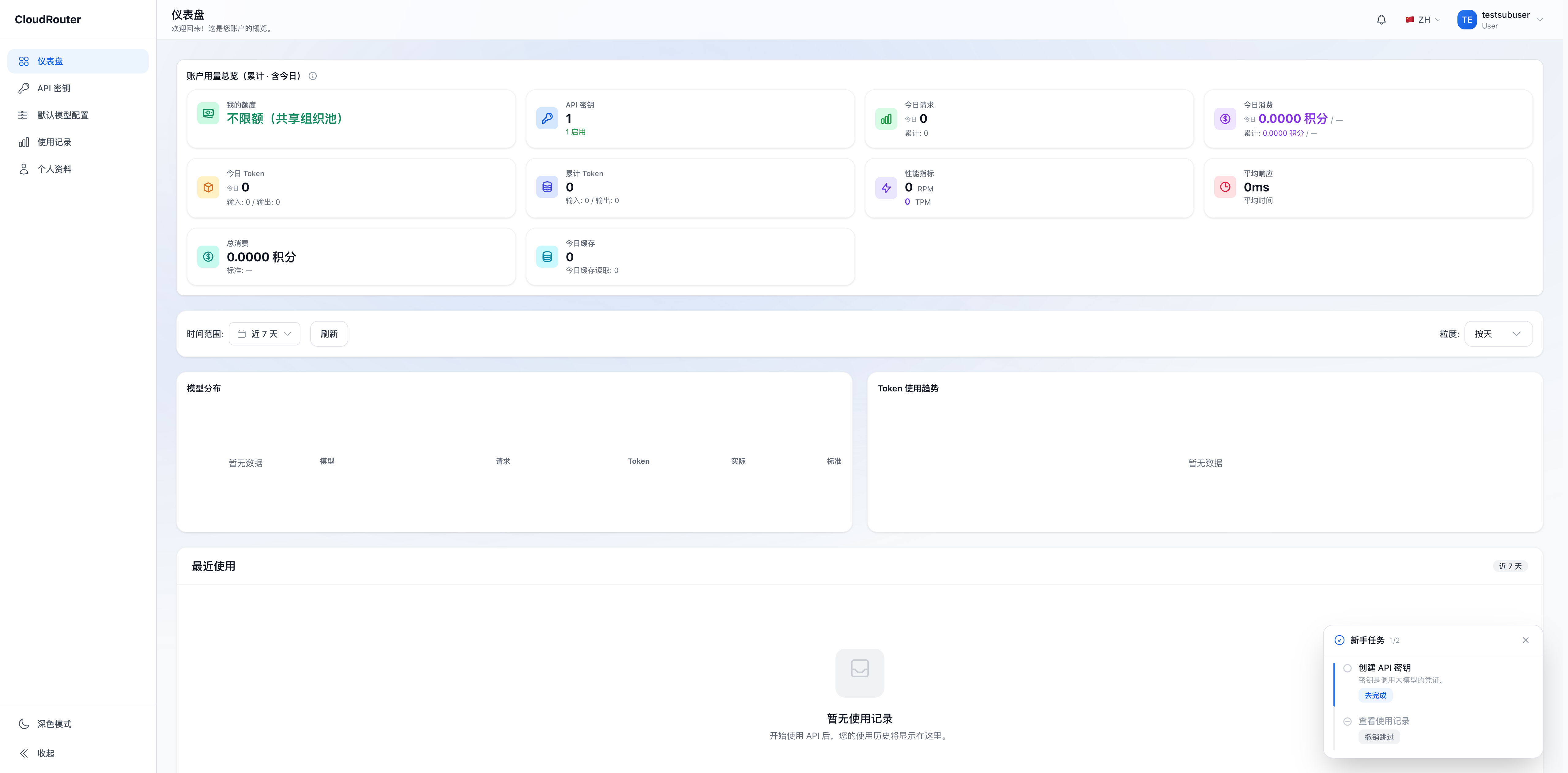
Member users are created by the organization's admin user. Members can manage their own API Keys, call models, and view personal usage. Organization balance, member permissions, and group access are managed by the admin user.
If the console shows entries such as "Member Management", "Balance Management", or "Redeem", the current account is an admin user. See the Admin Guide.
What Members Can Do
| Capability | Description |
|---|---|
| Manage API Keys | Create, disable, delete, and configure groups and usage limits |
| Call models | Use models and groups assigned by the organization |
| View personal usage | Query your own requests, tokens, costs, and quota |
| Configure default routing | Set fallback groups for standard model names |
| View subscriptions | Check subscriptions assigned by the admin user and remaining quota |
| Manage profile | Change password, avatar, and login information |
Members do not have an independent balance. Pay-as-you-go calls are deducted from the organization balance, subject to personal quota limits. Subscription-bound Keys use the corresponding subscription quota.
Console Navigation
| Menu | Purpose | Details |
|---|---|---|
| Dashboard | View quota and recent usage | Dashboard and Quota |
| API Key | Create and manage Keys | API Key Management |
| Default Model Config | Set fallback groups for standard model names | Call Guide |
| Usage Records | Query personal call details | Usage and Profile |
| My Subscriptions | View subscription status and quota | My Subscriptions |
| Profile | Edit personal information and password | Usage and Profile |
| Call Guide | Copy model call names; always visible in the menu. Whether call names with group identifiers are displayed depends on the group identifier routing switch | Call Guide |
First Call
- Activate your account using the activation code provided by the admin user, or log in with your corporate intranet account.
- Create a Key under "API Key" and select a routing group.
- Copy the model call name from "Call Guide" or "Default Model Config".
- Enter the API Key, Base URL, and model call name into your code or client.
- Send a short request and confirm the model and group in "Usage Records".
OpenAI Compatible tools typically use:
Base URL: https://<接口地址>
Model: deepseek-v4-flash
Use the endpoint address shown on the "API Key" page in the console.
For complete examples, see the Developer Guide. For third-party client configuration, see the Tool Integration Guide.
Troubleshooting
| Issue | Document |
|---|---|
| Did not receive activation code or cannot log in | Activation and Login |
| Insufficient quota or unclear usage | Dashboard and Quota |
| Target group not available when creating a Key | API Key Management |
Not sure what to enter for model |
Call Guide |
| Pay-as-you-go quota exhausted but subscription available | My Subscriptions |
| Other common questions | Member FAQ |