Dashboard and Quota
Role: Member user Last updated: 2026-08-06
The dashboard summarizes your current quota, recent requests, token usage, and spending trends. All data on this page is read-only; quota adjustments are made by the admin user.
Dashboard Content
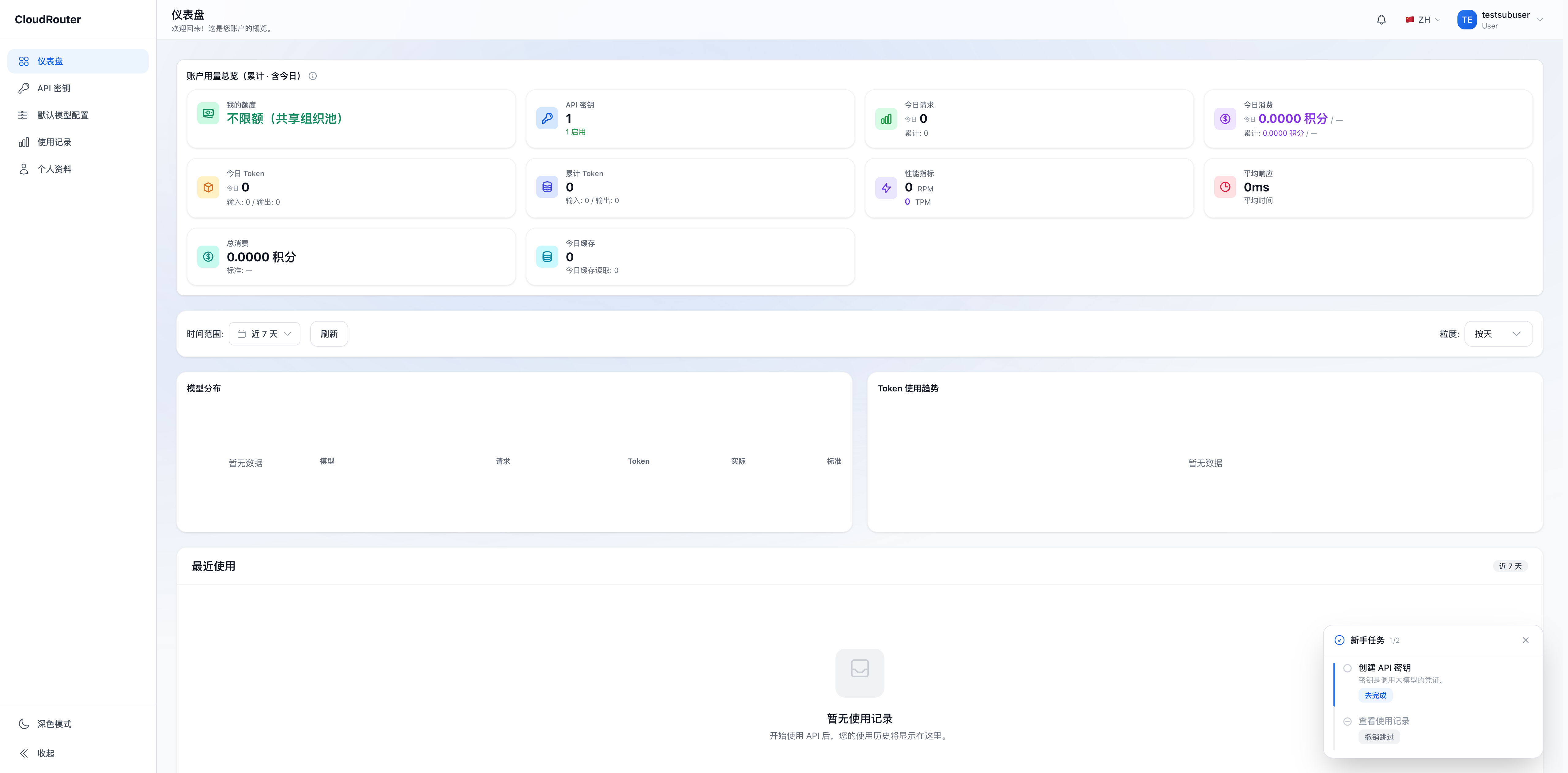
The page typically includes the following information:
| Section | Description |
|---|---|
| My Quota | Used, total, and remaining quota; displays "Unlimited" when no personal cap is set |
| API Key | Total and active Key count |
| Requests & Spending | Today's and cumulative request count and credits consumed |
| Token Usage | Input, output, and cumulative tokens |
| Model Distribution | Request or token share by model |
| Usage Trends | Usage changes over the selected time range |
| Recent Usage | Last 5 calls from the past 7 days; click "View All" at the bottom to go to usage records |
Top-level stat cards may show cumulative values, while charts below follow the selected time filter. The two sections cover different periods, so the numbers are not expected to match exactly.
How Quota Is Consumed
Member quota is a pay-as-you-go spending cap, not an independent balance. After a request is billed:
- The cost is deducted from the organization balance.
- The same cost counts toward the member's used quota.
- All pay-as-you-go Keys under the member share this user quota.
- If a Key has its own limit, both the Key limit and the user quota must be satisfied.
Subscription-bound Keys use subscription quota and do not consume pay-as-you-go quota. See My Subscriptions for details.
Checking Remaining Quota
Both the "Dashboard" and "API Key" pages display current quota information. When no personal cap is set, the wording differs: the dashboard's dual-track quota card shows "Unlimited", while the API Key page header card shows "Unlimited (shared org pool)". Both mean the same thing. Data updates may have a brief delay. When troubleshooting, refresh the page and cross-check with the latest request in usage records.
When Quota Is Exhausted
When pay-as-you-go quota is used up, the member's pay-as-you-go Keys will be rejected. You can:
- Contact the admin user to increase your quota.
- Check whether you have available subscription-bound Keys.
- Check whether a Key has a lower independent limit.
- Review usage records for any unusual spending.
After the admin user adjusts your quota, new requests are evaluated against the updated settings. There is no need to recreate Keys.
FAQ
Is the quota on the dashboard a personal balance? No. It is a personal pay-as-you-go spending cap. Actual costs are deducted from the organization balance.
Can I view the organization's remaining balance? Members can only view their personal quota and usage. The organization balance is visible to the admin user.
Can quota be transferred to another member? Not directly. The admin user can adjust each member's quota cap separately.
Why doesn't the data update immediately after a call? Statistics may have a brief delay. Wait a moment and refresh. If the call also does not appear in usage records, check whether the request actually reached the platform.