Activation and Login
Role: Member user Last updated: 2026-08-06
Member accounts are created by the admin user. Typically you need a one-time activation code to set up your email and password. Organizations that have integrated enterprise directory authentication can log in directly with their intranet accounts.
Activating with an Activation Code
After the admin user creates a member, the activation code is sent to the user. The activation code is for first-time activation only and expires once used successfully.
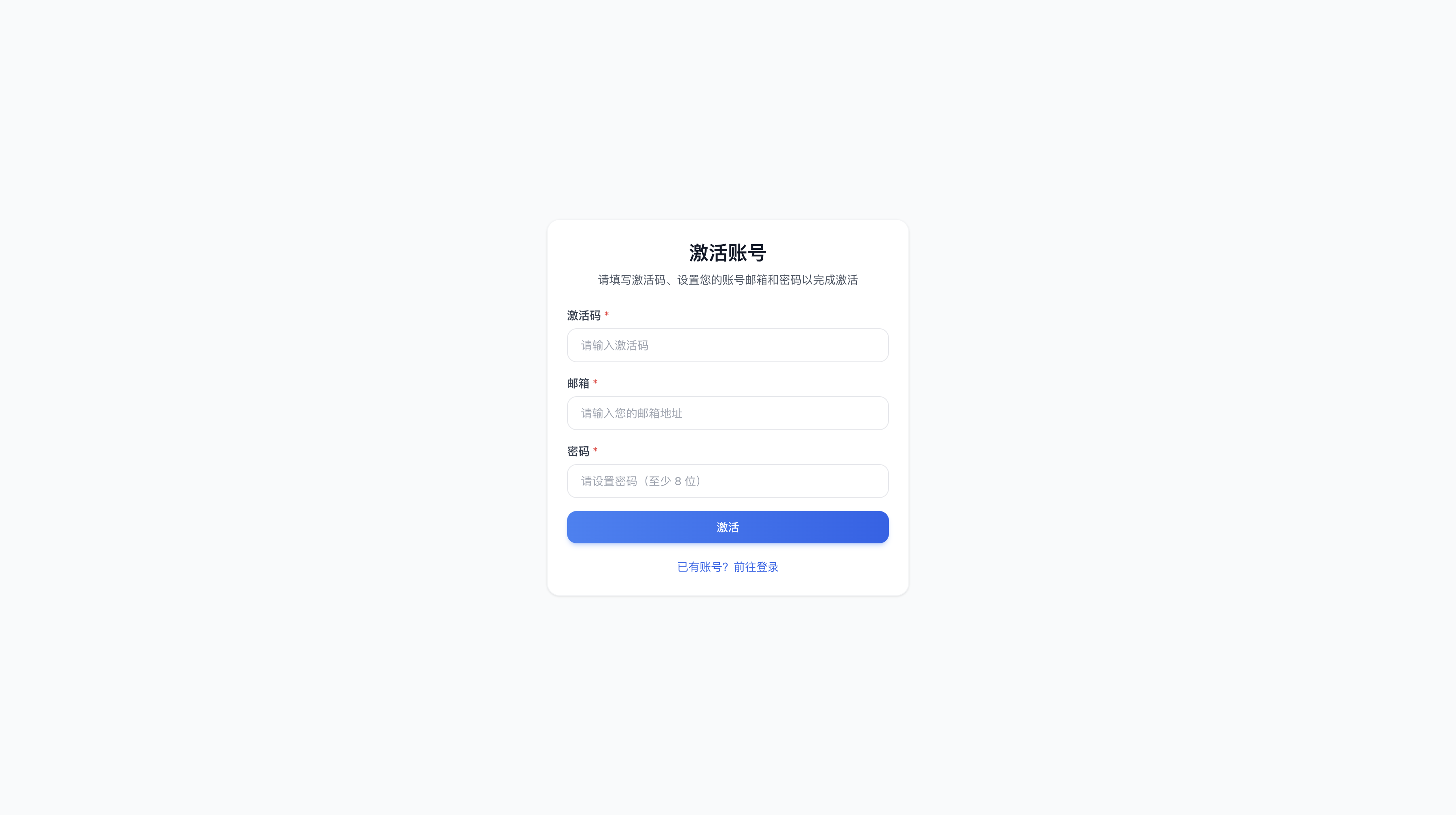
- Open the activation page provided by the admin user.
- Enter the activation code.
- Fill in your login email.
- Set your login password.
- Click "Activate".
If the activation code was not received, has expired, or cannot be used, contact the admin user to regenerate one. Do not share the activation code in public chats or ticket screenshots.
Logging into the Console
- Open the console login page.
- Enter the email and password you set during activation.
- Click "Login".
For organizations with directory authentication, the login page defaults to "Intranet Account Login". You need to switch to "Email Login" first, then enter your email and password.
After terms of service updates, the page may require you to confirm the new terms first. The login fields and button will only become active after confirmation.
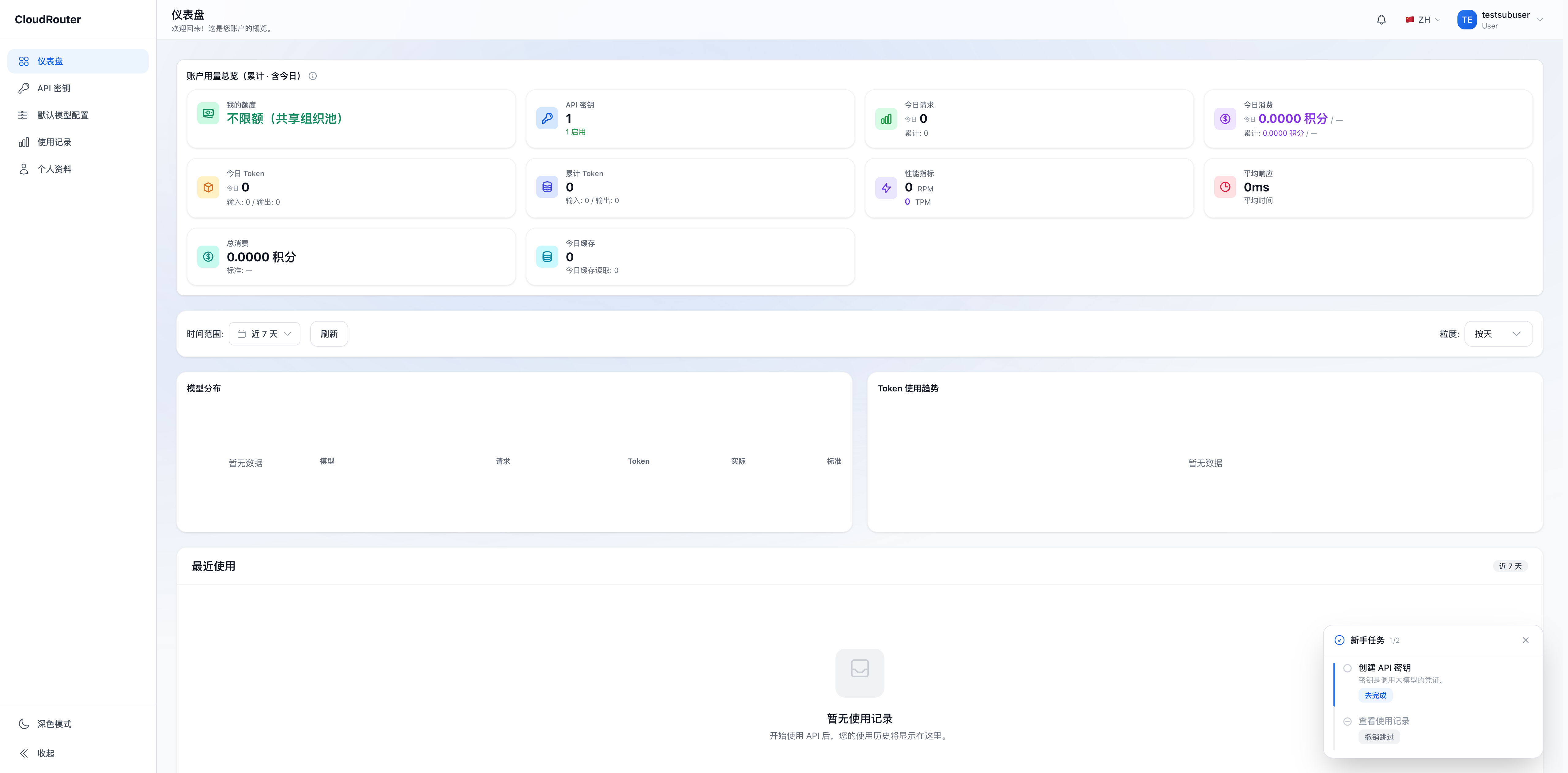
Members typically see Dashboard, API Key, Default Model Config, Usage Records, My Subscriptions, and Profile. Some features appear based on organization settings: call names with group identifiers only appear on the call guide page after group identifier routing is enabled.
Using Enterprise Intranet Account
After the organization enables directory authentication, the login page shows "Intranet Account Login". On the first successful authentication, the system automatically creates and associates a member account -- no activation code or separate platform password is needed.
- The login page defaults to "Intranet Account Login".
- Enter your intranet account.
- In the "PIN + OTP" field, enter your PIN and one-time password consecutively (this is a single input field, not two separate fields).
- Click "Login".
If the page requires entering PIN and OTP consecutively, do not add spaces. For example, if your PIN is 1234 and OTP is 567890, enter 1234567890.
Consecutive authentication failures may trigger a temporary lockout. Wait for the lockout period to end before retrying. Issues with accounts, OTPs, or directory permissions should be handled by your enterprise IT administrator.
Changing or Recovering Your Password
Logged-in users can set a new password in "Profile" using the current password. If you cannot log in, use the password recovery option on the login page first. If there is no self-service option or recovery fails, contact the admin user.
Intranet account credentials are managed by the enterprise directory system and cannot be changed on the platform.
FAQ
What account do I use to log in after activation? Use the email and password you set during activation.
Why is my activation code invalid? Common reasons include: already used, expired, incompletely copied, or contains spaces. The admin user can regenerate one in member management.
What if the menu looks different from the documentation? Feature entries vary based on role and organization settings. If you see entries such as member management or balance management, the current account is typically an admin user. See the Admin Guide.
What if intranet authentication fails? Confirm the PIN and OTP input format, and use a currently valid OTP. If you still cannot log in, contact your enterprise IT administrator.