Usage Records and Profile
Role: Member user Last updated: 2026-08-06
"Usage Records" is for querying personal call details. "Profile" is for managing login information and notification settings.
Usage Records
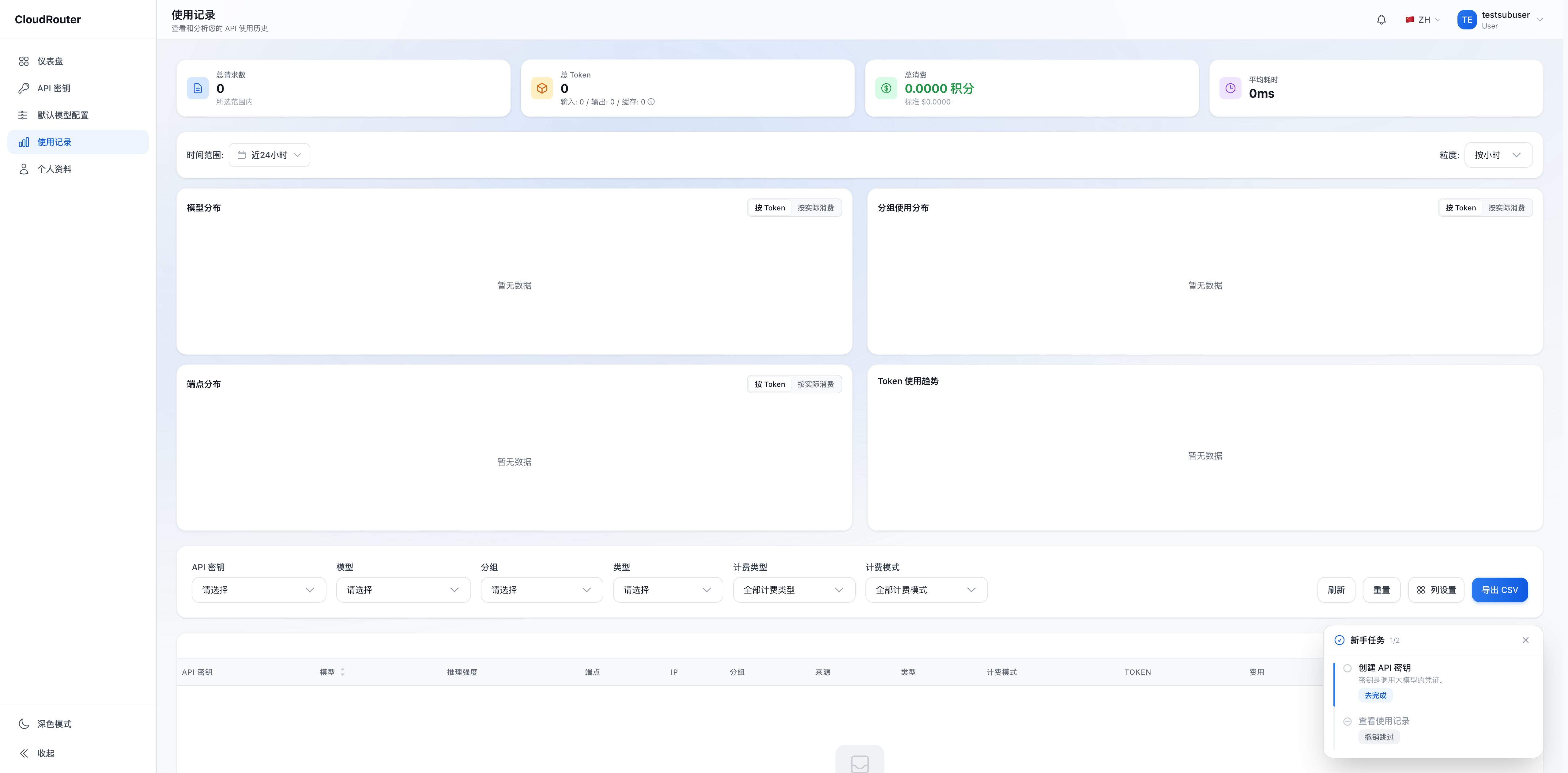
The page shows recent requests by default. You can adjust the time range and filter by API Key, model, group, billing type, or billing mode. Group, billing type, and billing mode appear only after expanding "More Filters".
Each record typically includes:
- Request time and status
- API Key, model, and actual group
- Input, output, and cached tokens
- Credits consumed
- Response time and source information
Members can only view their own records. The page supports refresh, reset, column settings, and CSV export. Usage records cannot be edited or deleted.
When troubleshooting a request, note the exact time first, then filter by Key and model. If no record is found, check whether the client used a different Key or Base URL.
"Error Requests" Tab
In addition to the default call detail view, there is an "Error Requests" tab at the top of the page, which serves as the primary entry for troubleshooting. This tab lists only failed requests, showing status codes, error classifications, and error messages. Click a single record to open the detail dialog with the full error.
Note: The export button is hidden under the "Error Requests" tab. Only the default tab supports CSV export.
Profile
The profile page may include the following settings:
| Section | Purpose |
|---|---|
| Account Overview | View role and status, including a "Remaining Quota" tile |
| Profile & Avatar | Change username and avatar |
| Login Method Binding | Bind or change email; manage supported login methods |
| Change Password | Set a new password using the current password |
| Passkey | Passwordless login using Face ID, Touch ID, Windows Hello, or a security key |
| Key Quota Alert | Configure quota alert thresholds and notification email |
| Two-Factor Authentication (2FA) | Add a dynamic verification code to logins |
| Onboarding Guide | Reopen the console onboarding walkthrough |
Available settings vary based on organization configuration and login method. For example, accounts using enterprise directory authentication have their passwords managed by the enterprise directory system.
Members cannot delete their own organization account. To deactivate, contact the admin user. Before deactivation, ensure that all related API Keys have been removed from applications.
Quota Alerts
When a personal quota cap is set and notification is available, you can configure alert thresholds and a notification email. Alerts are informational only -- they do not automatically increase quota or disable Keys.
Upon receiving an unusual usage alert, check the Key, model, and source IP in usage records, and immediately disable any suspicious Key if necessary.
FAQ
Can usage records be exported? Yes. The exported CSV can be used for personal reconciliation or troubleshooting. Remove unnecessary account and source information before sharing.
Why doesn't the record appear immediately? Statistics may have a brief delay. If it still does not appear after refreshing, confirm whether the request succeeded and whether the client used the current account's Key.
Can I view other members' records? No. Organization-wide summaries are available to the admin user.
What if I forgot my password? If you can log in, change it in Profile. If you cannot log in, use the password recovery option or contact the admin user. For intranet account issues, contact your enterprise IT administrator.