Claude Code Integration Guide
Applicable roles: Developers, Admin Users, Member Users Last updated: 2026-08-06
Claude Code connects to the platform via the Messages Compatible interface. The Base URL here uses the domain root address without appending /v1.
Whether the Messages protocol (/v1/messages) is available depends on the platform of the group bound to the key and whether that group allows Messages dispatching. If unavailable, it returns 403 — switch to OpenAI Compatible instead.
Install and Verify the Command
Choose any official installation method:
npm install -g @anthropic-ai/claude-codeOn macOS, Linux, or WSL, you can also run:
curl -fsSL https://claude.ai/install.sh | bashAfter installation, run claude --version to confirm the terminal can locate the command.
Configure Connection Information
Claude Code can read environment variables from ~/.claude/settings.json:
{
  "env": {
    "ANTHROPIC_BASE_URL": "https://<your-api-endpoint>",
    "ANTHROPIC_API_KEY": "YOUR_API_KEY",
    "CLAUDE_CODE_DISABLE_NONESSENTIAL_TRAFFIC": "1",
    "CLAUDE_CODE_ATTRIBUTION_HEADER": "0"
  }
}
Use the API endpoint shown on the console "API Key" page.
For quick testing, you can also set variables in the current terminal session:
export ANTHROPIC_BASE_URL="https://<your-api-endpoint>"
export ANTHROPIC_API_KEY="YOUR_API_KEY"
claude
For PowerShell:
$env:ANTHROPIC_BASE_URL="https://<your-api-endpoint>"
$env:ANTHROPIC_API_KEY="YOUR_API_KEY"
claude
Environment variables only apply to the current terminal session. For long-term use, writing them into the Claude Code configuration is more appropriate. Do not commit configuration files containing real keys to your project repository.
Select a Model and Verify
After launching, use /model to view available models. Model mappings and availability are based on the console "Call Guide" — do not guess call names from the display names shown in the tool.
You can verify with the following steps:
- Send a short message to confirm you receive a text response.
- Check the console "Usage Records" to verify the key, model, and group.
- Have Claude Code read a plain text file in your current project.
- Finally, try a small modification and check the Git diff.
If it still connects to the original service, check whether there is a higher-priority Claude Code configuration in the project directory, and whether the terminal where you launched the command has loaded old environment variables.
VS Code Extension
Search for Claude Code in the extension marketplace and install it after confirming the name. The image below only shows the installation entry and does not correspond to the real-time marketplace page.
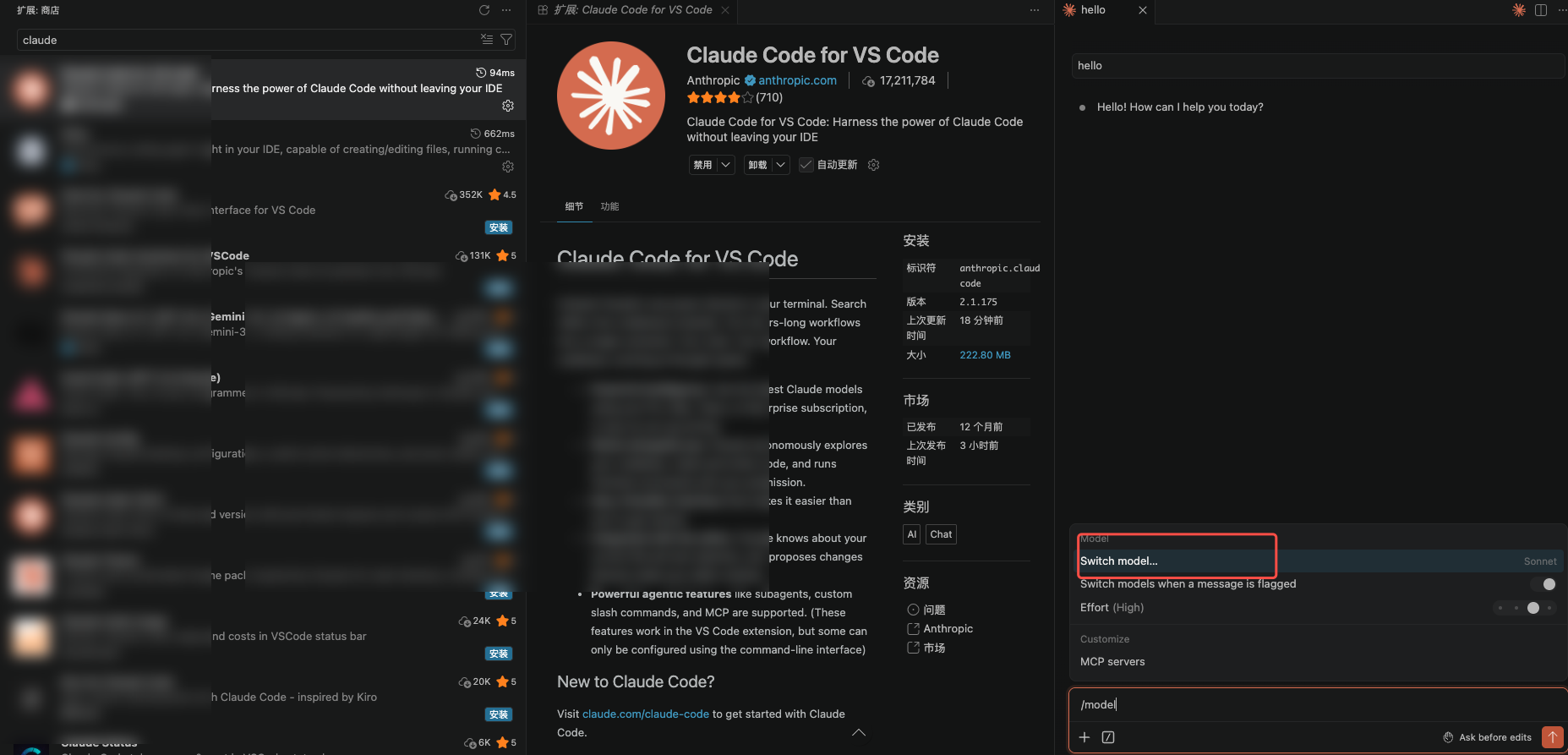
The extension typically reuses the local Claude Code configuration. If the terminal works but the extension does not, first fully restart VS Code, then check whether the extension process can access the user directory and environment variables.