Chatbox Integration Guide
Applicable roles: Developer, Admin User, Member User Last updated: 2026-08-06
Chatbox allows you to add custom models through the OpenAI API type. When configuring, distinguish between the API domain and the model name: the former determines where requests are sent, and the latter determines which model the platform routes to.
Adding a Connection
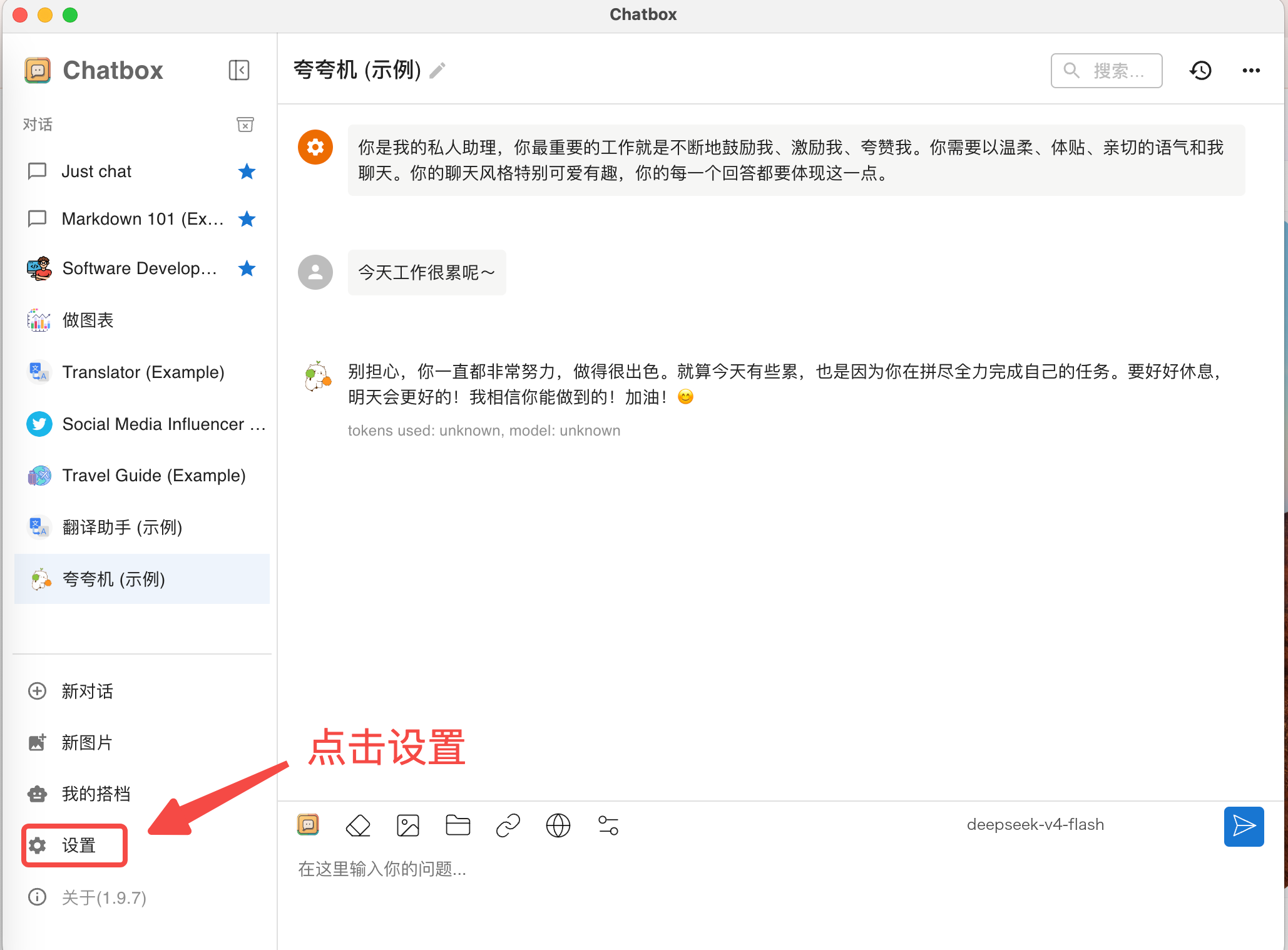
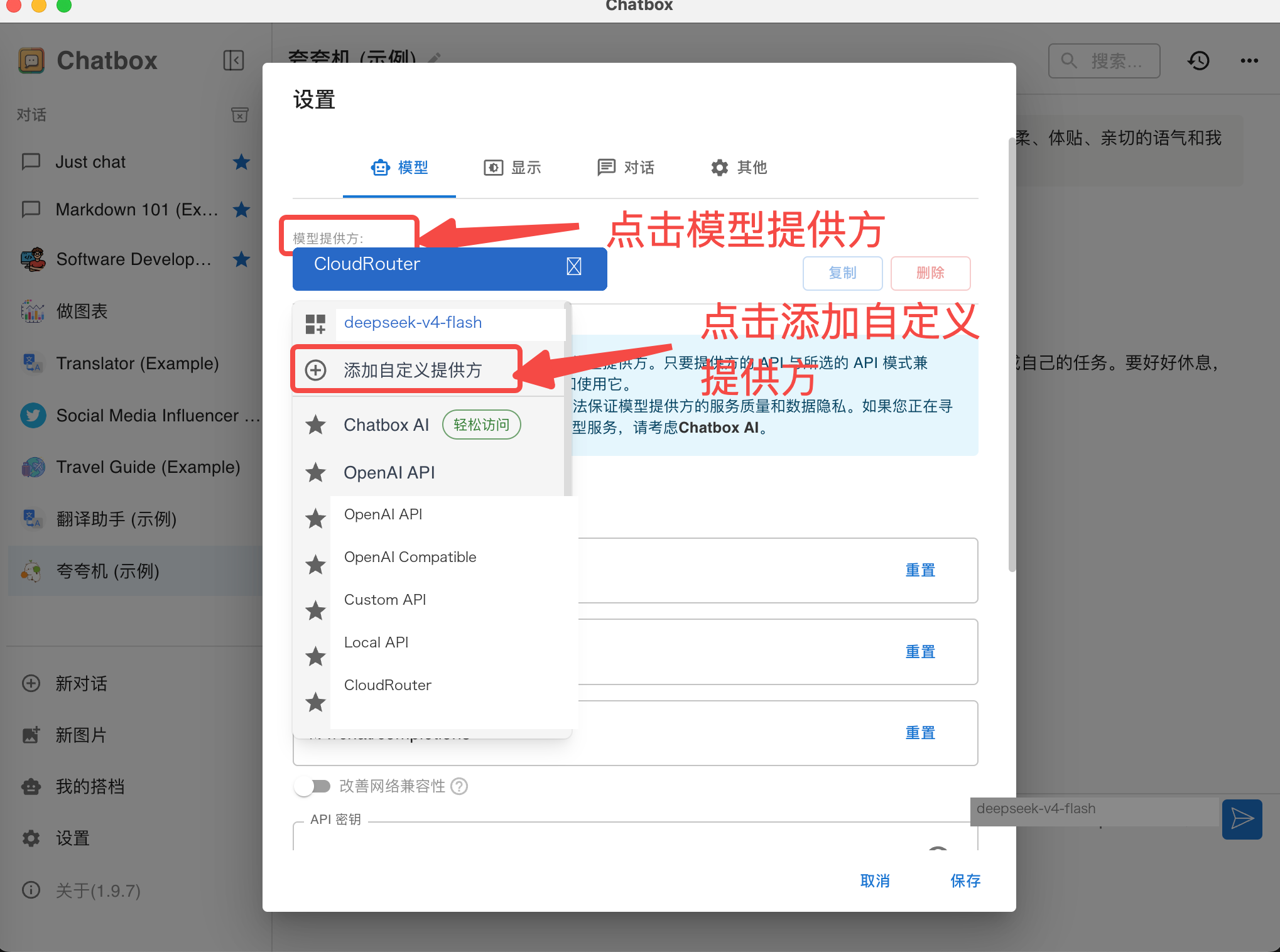
Open Settings and go to the model Provider section. Select OpenAI API, then add a custom model. The screenshots below are from the actual Chatbox interface; the Provider and model names have been replaced with platform configuration values.
Fill in the connection information as follows:
| Field | Value |
|---|---|
| API Domain | https://<your-api-endpoint> |
| API Key | Your platform API Key |
| Custom Model Name | The model call name shown in the console "Call Guide" |
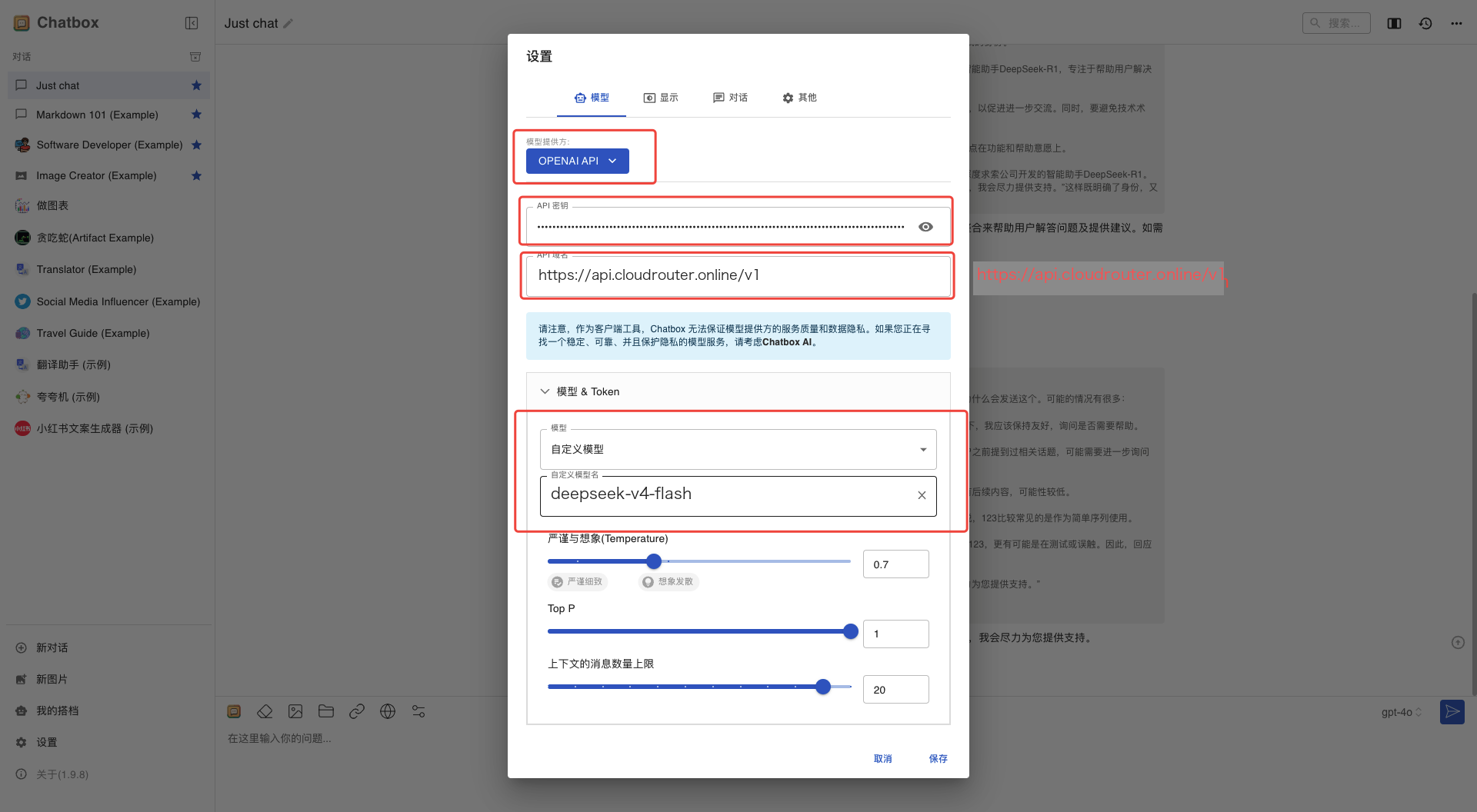
Use the endpoint address shown on the "API Key" page in the console.
After saving, return to the chat window, select the newly added model, and send a short message.
Troubleshooting Duplicate Addresses
The API Domain should always be https://<your-api-endpoint>. The client should automatically append the request path based on the selected protocol. If you encounter duplicate paths, check whether you accidentally entered the full endpoint.
A successful connection should satisfy both conditions: Chatbox receives a reply, and the corresponding Key and model appear in the console usage records. If you only see a local error with no records in the console, the request has likely not reached the platform.