Cline Integration Guide
Applicable roles: Developers, Admin Users, Member Users Last updated: 2026-08-06
Cline provides an OpenAI Compatible Provider, allowing you to directly enter the platform's address, key, and model call name.
Set Up the Provider
After installing Cline, open the sidebar settings and select OpenAI Compatible under API Provider. Field names may differ slightly across versions; keep the configuration values as follows:
| Field | Value |
|---|---|
| Base URL | https://<your-api-endpoint> |
| API Key | The key created in the console |
| Model ID | The model call name from the console "Call Guide" |
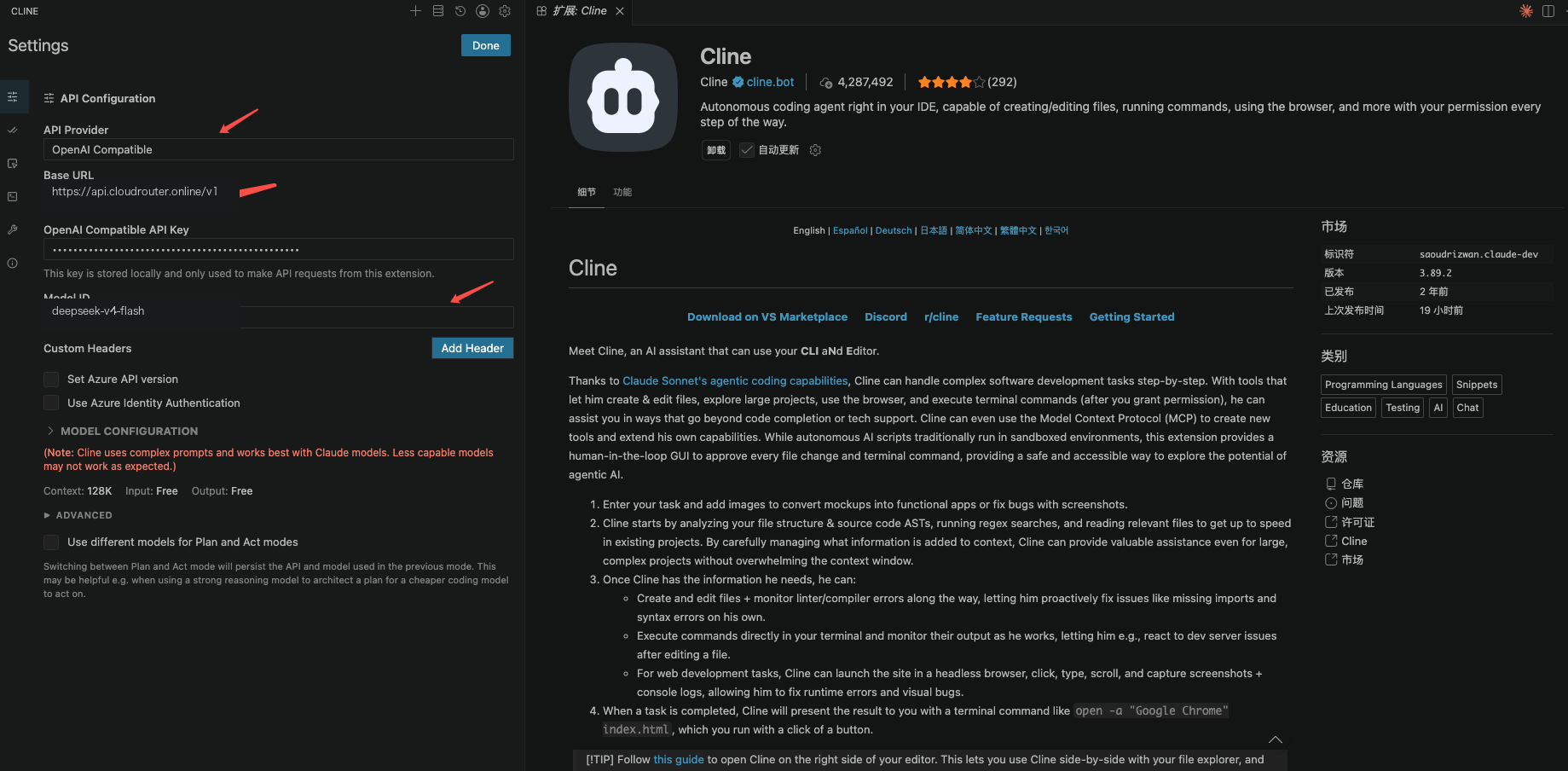
Use the API endpoint shown on the console "API Key" page.
The screenshot is from the actual Cline interface, with the Base URL and model call name replaced with the platform's configuration.
If Cline offers a Messages Compatible or Anthropic Compatible mode, you can also set the Base URL to https://<your-api-endpoint>. Do not mix address conventions from two different protocols within the same Provider. Whether the Messages protocol (/v1/messages) is available depends on the platform of the group bound to the key and whether that group allows Messages dispatching. If unavailable, it returns 403 — switch to OpenAI Compatible instead.
Test in Two Steps
First, send a plain text message. After receiving a reply, have Cline read a project file. This helps you distinguish between two types of issues:
- If text replies also fail, check the address, key, model name, and group.
- If text works but tool calls fail, check whether the model supports tool calling and whether Cline has workspace permissions.
For the initial test, avoid directly executing file writes or terminal commands. After the read test passes, have Cline make a small, easily reversible change and check the diff.