Roo Code and Kilo Code Integration Guide
Applicable roles: Developer, Admin User, Member User Last updated: 2026-08-06
Both Roo Code and Kilo Code can use custom models through an OpenAI Compatible Provider. The menu layout and field positions may differ between the two, but the connection values are the same.
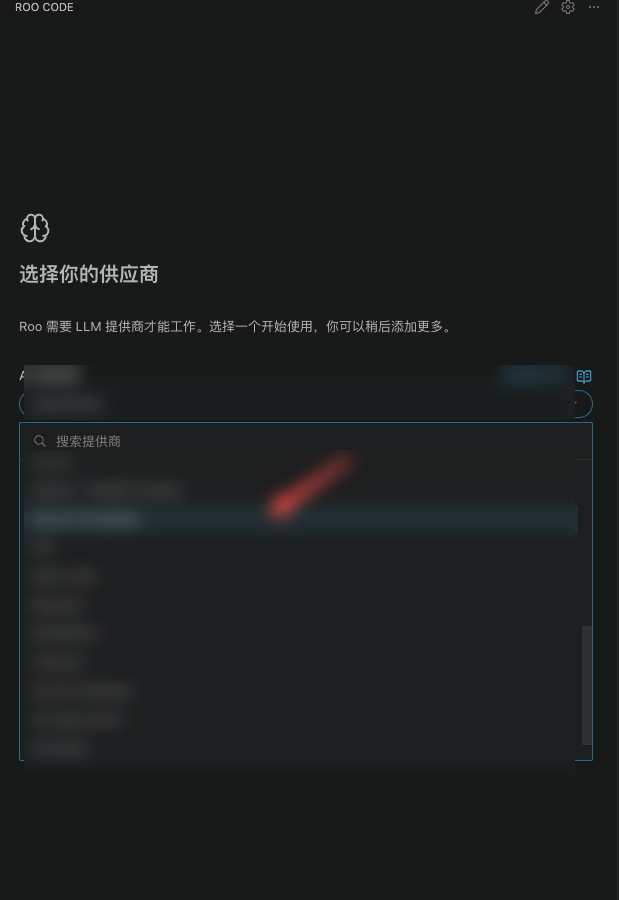
Configuring the Provider
Open the plugin settings and create a new OpenAI Compatible Provider with the following values:
| Field | Value |
|---|---|
| Base URL | https://<your-api-endpoint> |
| API Key | Your platform API Key |
| Model | The model call name shown in the console "Call Guide" |
The two screenshots below are from the actual Roo Code interface. Unrelated services in the provider list have been redacted, and the connection address and model call name have been replaced with platform configuration values.
Use the endpoint address shown on the "API Key" page in the console.
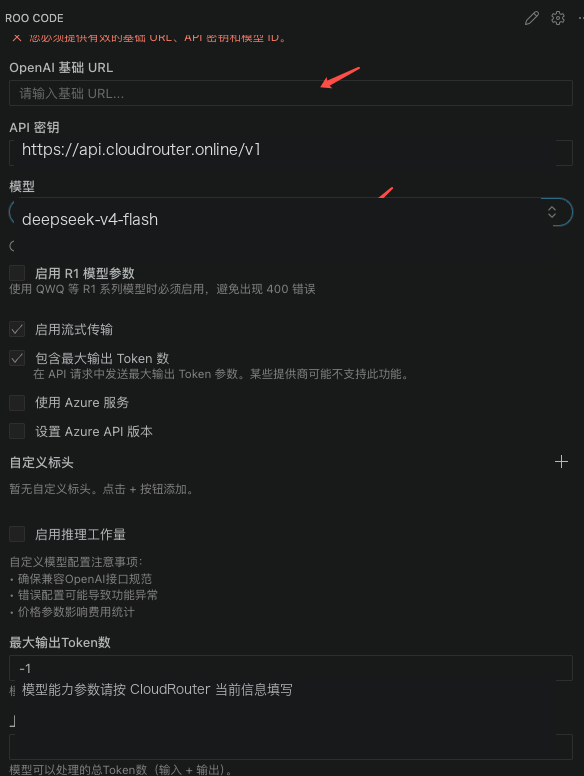
Only use https://<your-api-endpoint>/v1/chat/completions when a field explicitly requires the full endpoint. The Base URL input should still contain the root address.
Verifying Agent Capabilities
Test text responses first, then ask the plugin to read a file. If text works but reading or editing fails, check the plugin workspace permissions and tool call settings, and confirm that the current model supports the required capabilities.
Do not infer context length, image input, or max output values from the model name. When the plugin requires you to manually fill in these capabilities, use the values currently shown in the console. Leave unconfirmed capabilities disabled or use the tool defaults.