Immersive Translate Integration Guide
Target audience: Admin Users, Member Users Last updated: 2026-08-06
The custom service fields in Immersive Translate may change across versions. Some versions require the full endpoint address, while others only require the Base URL. Check the field name and help text before filling in.
Create a Translation Service
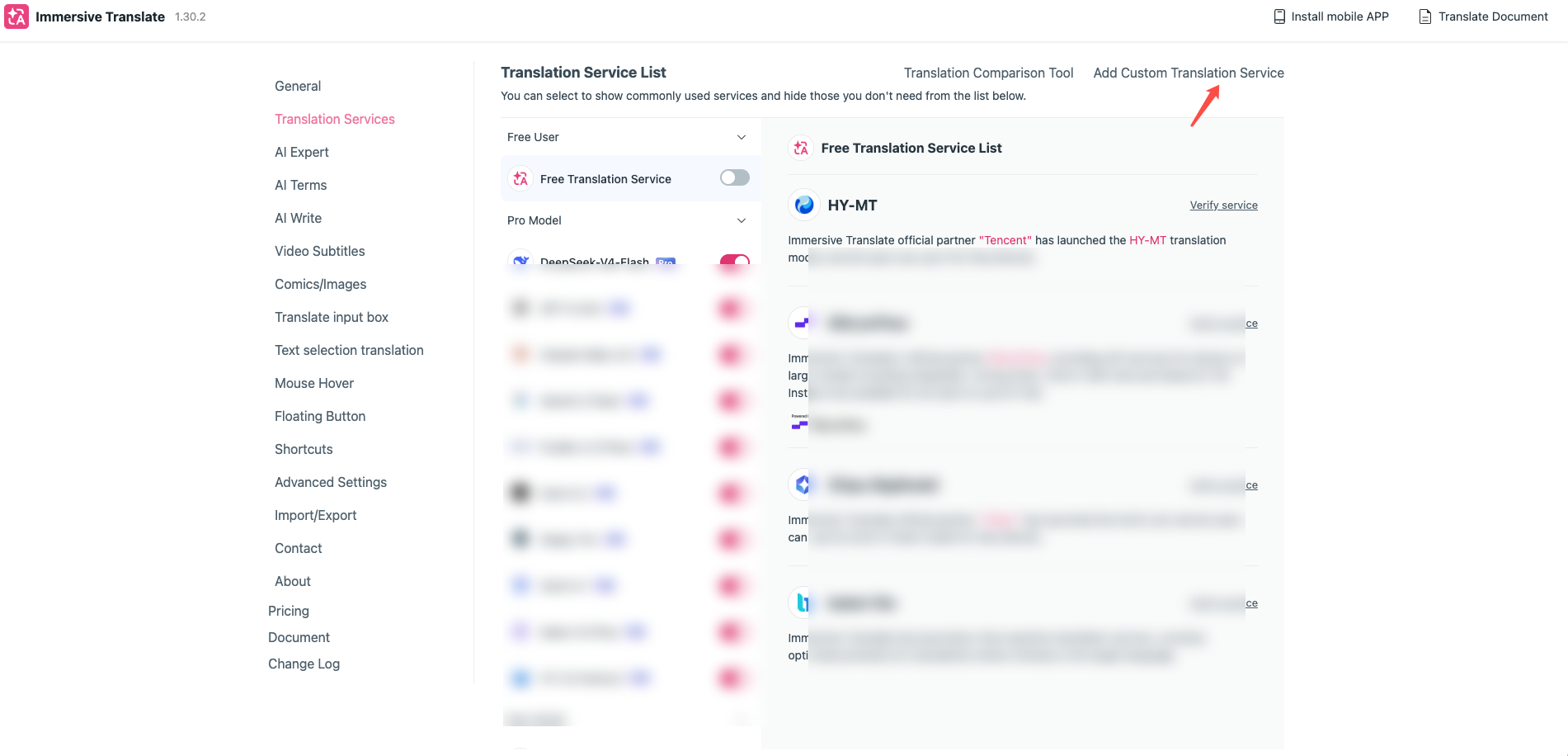
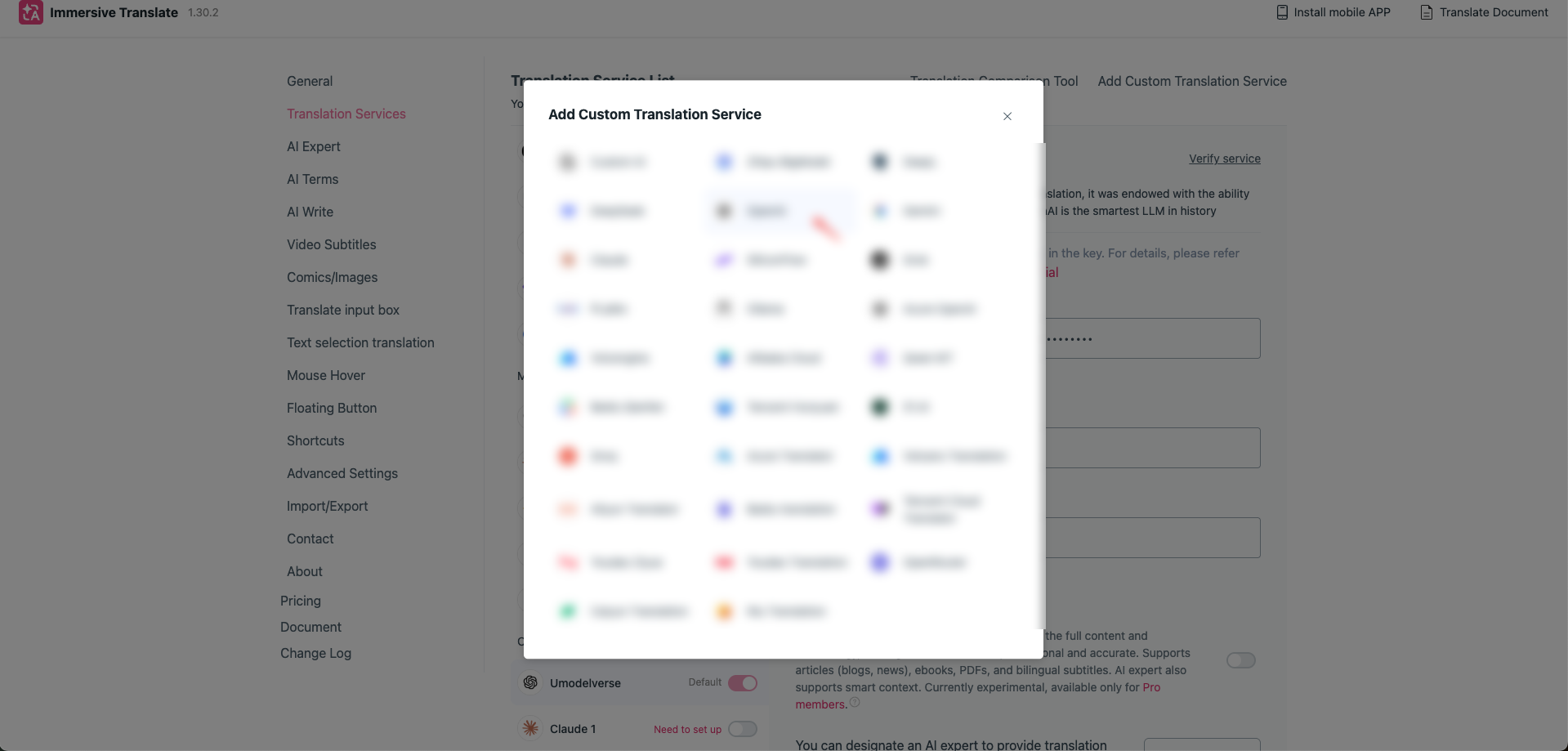
Go to Translation Services in the settings and add a custom OpenAI service. The images below are from the actual Immersive Translate interface. Unrelated service names have been redacted, and connection information has been entered in the corresponding fields.
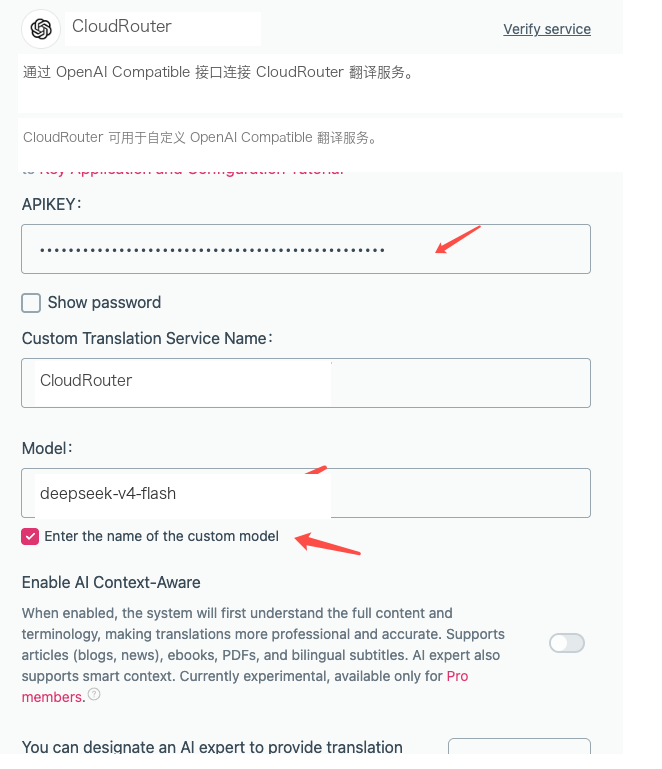
Fill in the service name, your platform API Key, and the model call name. Enable the custom model option if available.
When the field says "Custom API interface address" or full endpoint address, enter:
https://<your-api-endpoint>/v1/chat/completionsUse the endpoint address shown on the "API Key" page in the console.
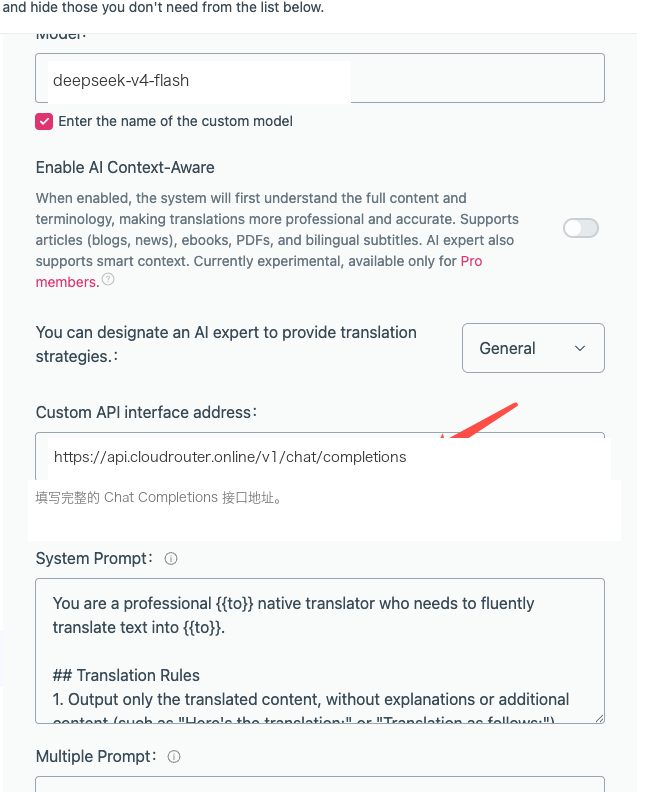
When the field says only "Base URL", enter https://<your-api-endpoint> instead.
Verify Translation
After saving, run the service verification first, then select a short webpage for testing. If you receive a 404, check whether the address type was entered incorrectly. If you receive "Model Not Found", copy the model call name again.
The translation service sends the content to be translated to the model. Before processing internal pages or webpages containing personal information, confirm whether the content is appropriate to submit to an external model endpoint.