Continue Integration Guide
Applicable roles: Developer, Admin User, Member User Last updated: 2026-08-06
Continue allows you to declare an OpenAI Compatible model in a local YAML configuration. The configuration file format evolves with Continue versions; the example below applies to configurations using schema: v1.
Adding a Chat Model
Open the Continue Configs in VS Code or JetBrains and create or edit the local configuration. The configuration content in the screenshot has been replaced with platform example values.
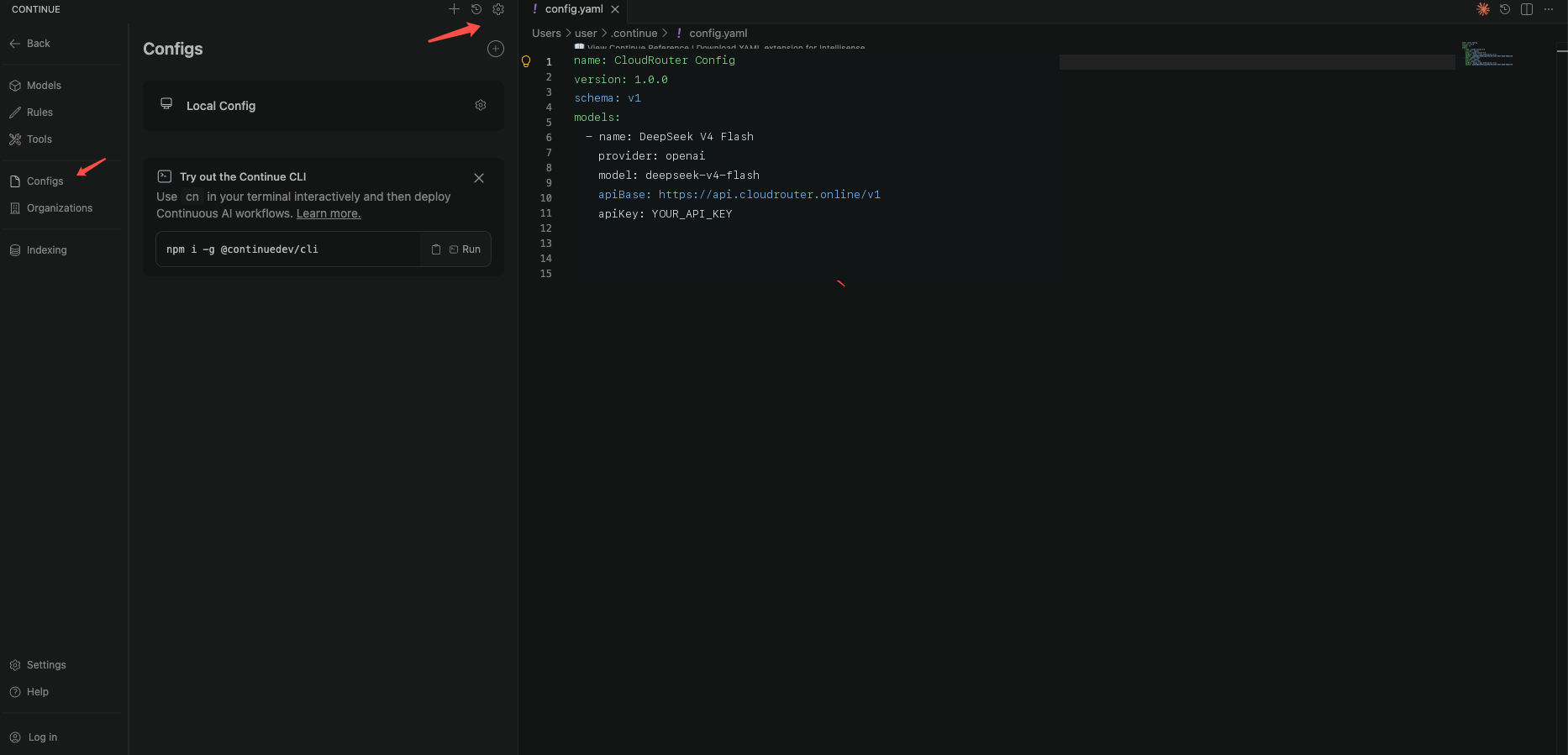
name: Custom Platform Config
version: 1.0.0
schema: v1
models:
  - name: DeepSeek V4 Flash
    provider: openai
    model: deepseek-v4-flash
    apiBase: https://<your-api-endpoint>
    apiKey: YOUR_API_KEY
    roles:
      - chat
      - edit
name is used for display purposes; model must be the call name from the console. You can add multiple models as sibling entries under models.
Use the endpoint address shown on the "API Key" page in the console.
Avoid storing real keys in project files long-term. If your version of Continue supports secret references or environment variables, prefer that approach.
Reloading and Verifying
After saving, reload Continue and confirm the model appears in the model selector. If it does not appear, check the plugin logs first. Common causes include YAML indentation errors, field version mismatches, or an incorrect configuration file location.
Once the model appears, send a short message, then perform a file read test. Connection issues typically produce errors during the request phase; if the model does not appear at all, prioritize checking the local configuration parsing.