Cherry Studio Integration Guide
Applicable roles: Developer, Admin User, Member User Last updated: 2026-08-06
Cherry Studio supports adding custom model services. You can customize the Provider name; select OpenAI Compatible as the protocol type.
Creating a Model Service
Go to the model service section in Settings and add a Provider. The screenshots are from the actual Cherry Studio interface. Unrelated providers have been redacted; menu positions may vary by version.
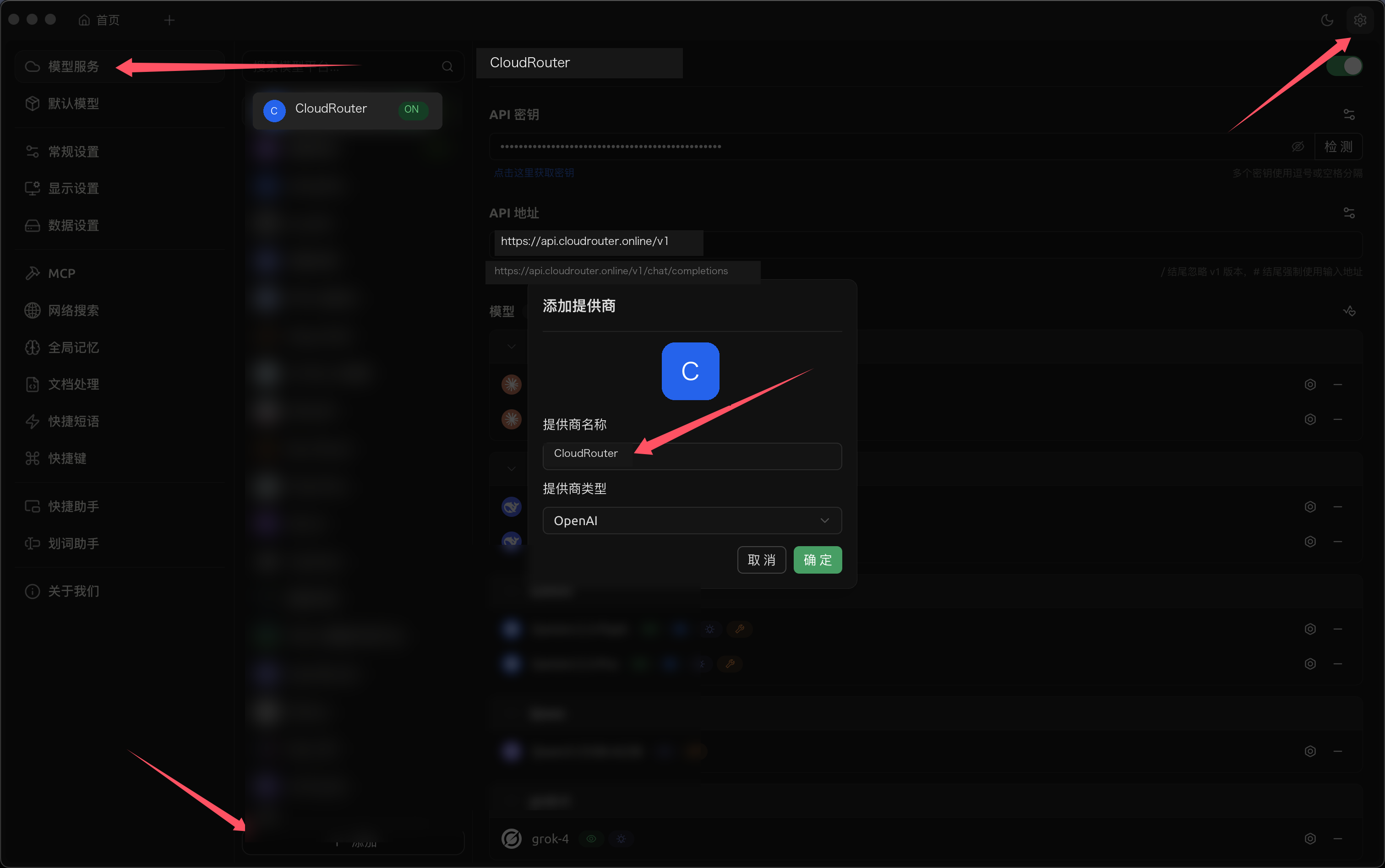
Provider connection information:
API URL: https://<your-api-endpoint>
API Key: YOUR_API_KEY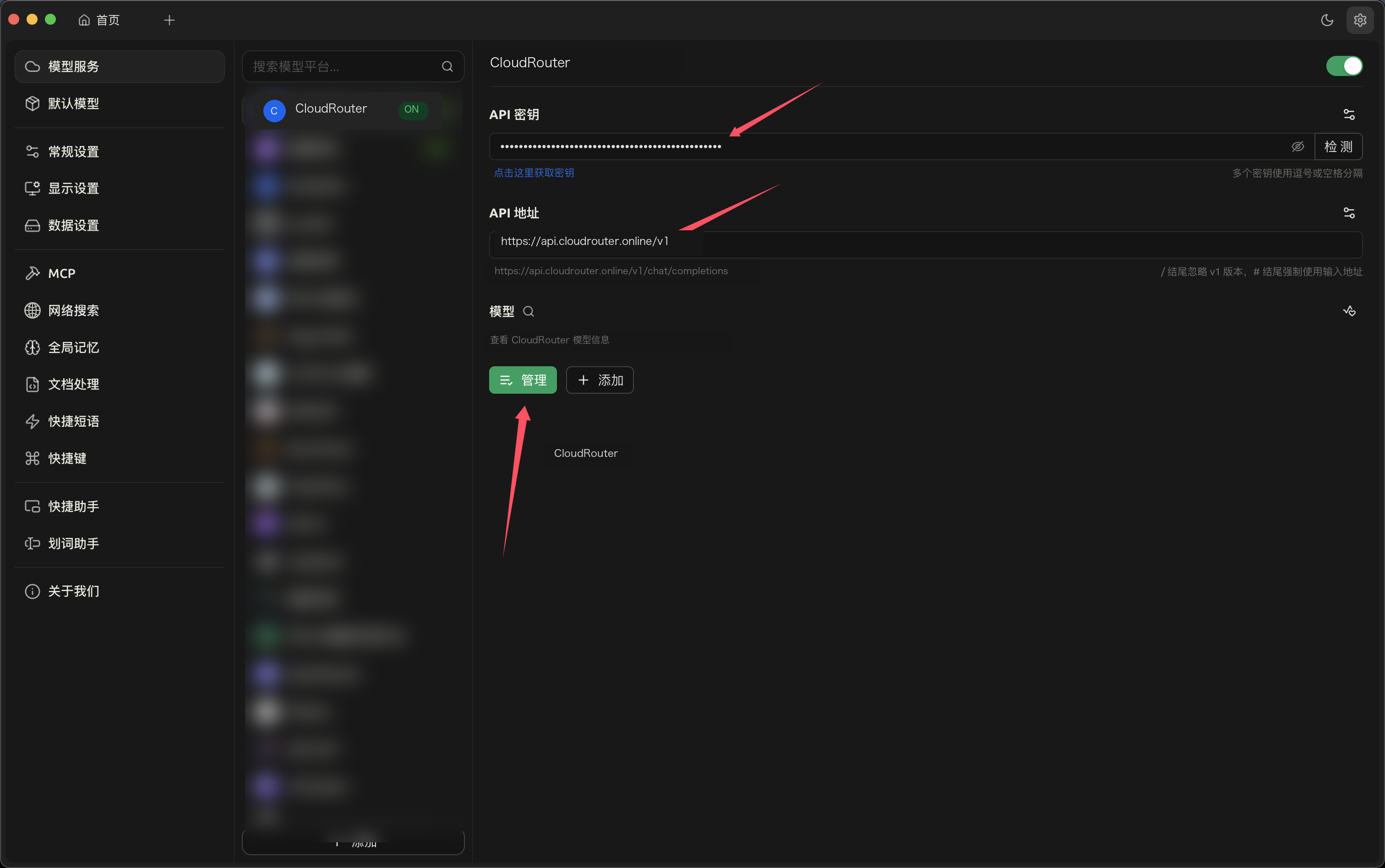
Use the endpoint address shown on the "API Key" page in the console.
Next, go to model management and add the model call name from the console "Call Guide". You can customize the display name, but do not modify the model ID.
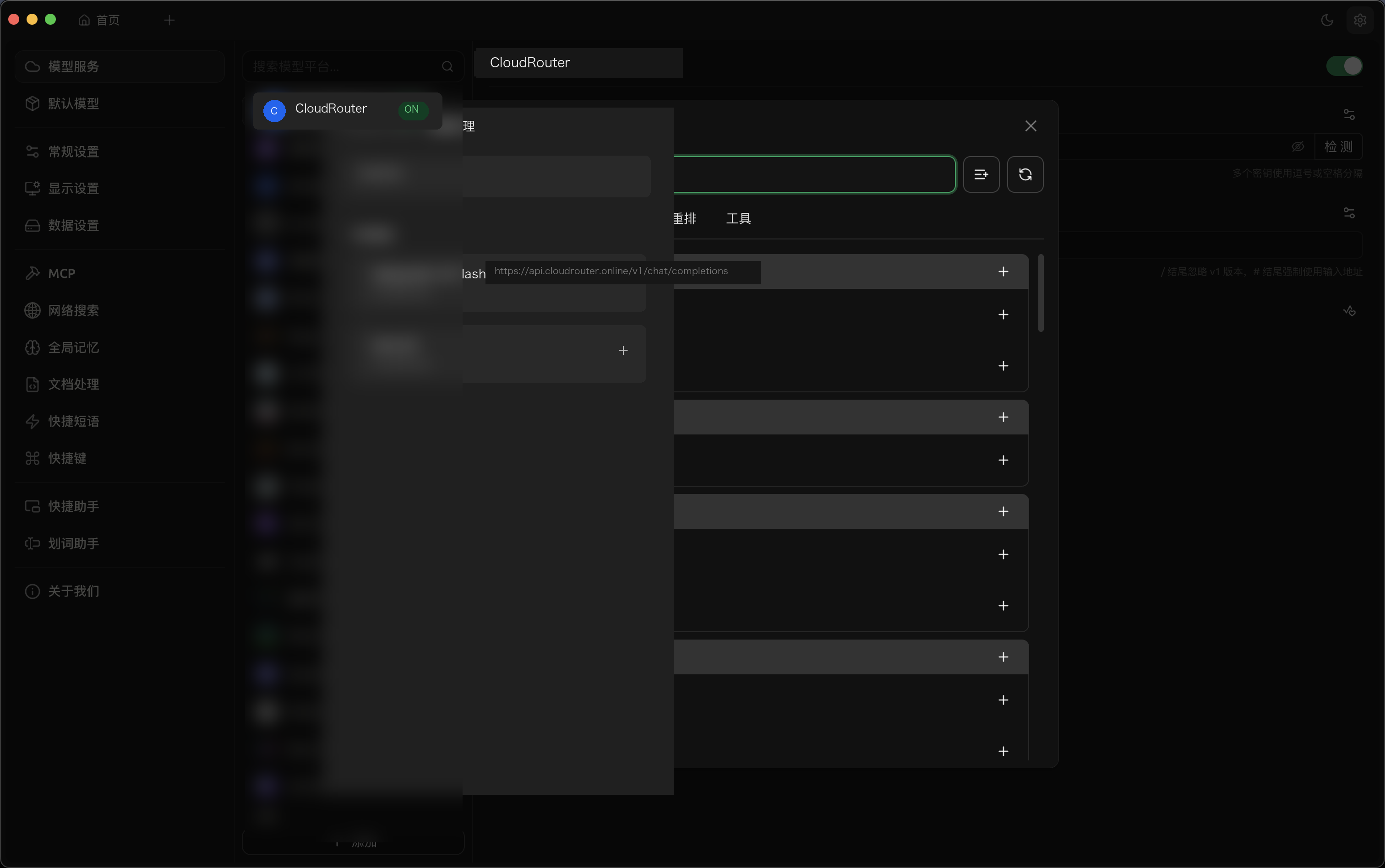
Enabling and Verifying
After enabling the Provider, select the new model on the chat page. If the model list is empty, you can manually add the call name. If the connection test fails, first check whether the address has a duplicate /v1 suffix or trailing slash.
If chat responses work but the model list still shows anomalies, use the console usage records as the source of truth and check whether Cherry Studio has retained an old Provider with the same name.